
Overview of field codes
Field codes are strings used to specify fields in formulas and APIs.
Field codes have default values, but you can change them to any value.
Steps
This article describes how to check or change field codes.
-
Click the App settings icon (the gear-shaped icon) at the upper right of the View screen.

-
On the App settings screen, click the Form tab.
-
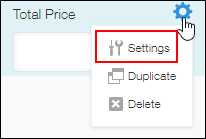
To change the field code, hover over the gear-shaped Settings icon in the upper right corner of the field, and click Settings.
-
On the field's settings dialog, check the string under Field code.
To change the field code, click the edit icon for Field code and enter a new field code.
The field code must be 1 to 128 characters long.
After entering the field code, click Save for Field code.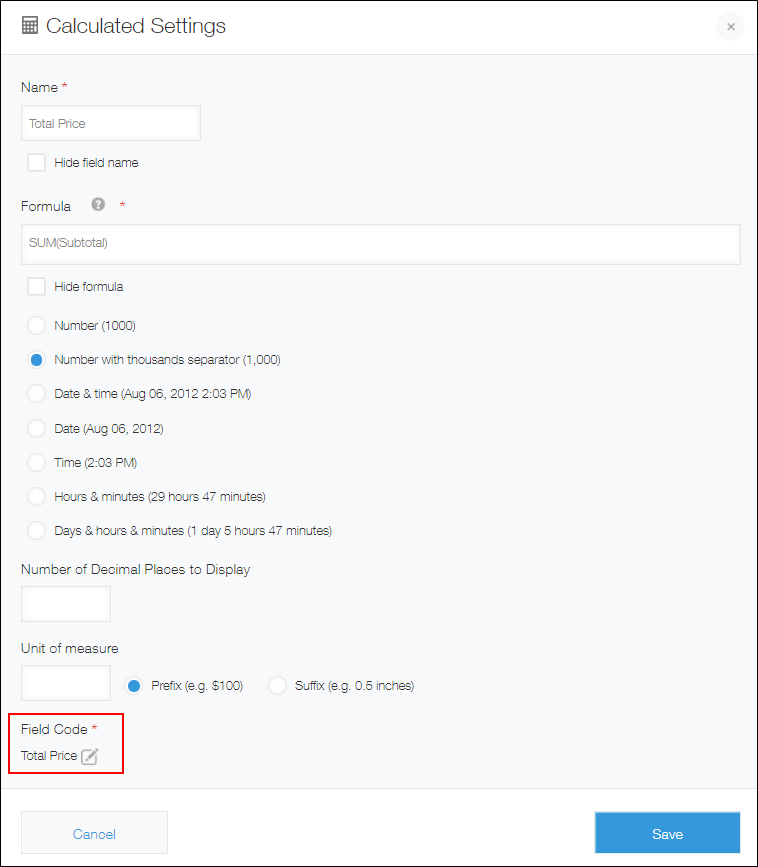
-
On the field's settings dialog, click Save.
-
Click Save form at the upper left of the screen.
-
Click Update app at the upper right of the screen.
-
On the Update app dialog, click Update app.
Valid characters
This section explains the character types you can use in field codes and those converted when saved.
Character types you can use
The characters that can be used for field codes are as follows.
- Hiragana
- Katakana (half-width and full-width)
- Kanji
- Alphanumeric characters (half-width and full-width)
- The following special characters:
- Half-width underscore (_)
- Full-width underscore (_)
- Half-width middle dot (·)
- Full-width middle dot (・)
- Full-width currency symbols (e.g., $, ¥)
Symbols that are converted to _
If you enter any of the following half-width symbols, they are converted to a half-width underscore (_) when saved (not all symbols are listed).
@ + ~ # % & ' = | ^ * ; : ? ( ) [ ] { }
For example, if you enter "A&B" for the field code, it is converted to "A_B".
Converting spaces
If a field code contains spaces (half-width or full-width), they are converted as follows when saved.
- If there are spaces before or after a field code, they will be deleted.
- Other spaces will be converted to a half-width underscore (_).
If an error appears
If you enter a field code and click Save, you may see an error indicating that it contains invalid characters.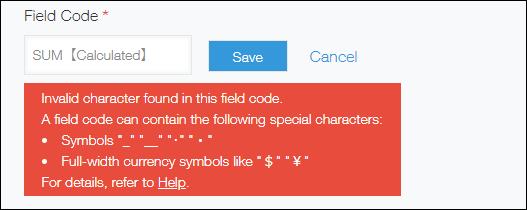
Check the following to ensure that the field code does not contain invalid characters.
Notes on the "Field code" setting
This section describes the rules for setting field codes and fields that require special handling.
Rules for the "Field code" setting
- Duplicate field codes are not allowed within a form.
If you set a field code that is already used for another field, the field code will be suffixed with an underscore (_) followed by a number (e.g., "string_0") when you save the settings. - The following strings cannot be set as field codes.
- Status
- Assignee
- Categories
- __ROOT__
- not
- If a field code begins with a number, a half-width underscore (_) is prefixed to the field code when you save the settings.
Field codes that require special handling
The field codes for the following fields are assigned by default as the field names with underscores in place of spaces.
- Record number
- Created datetime
- Updated datetime
- Created by
- Updated by
To use the field code of one of these fields for another field, you first need to change the originally assigned field code to a different value.
For detailed procedures, refer to the following section.
Use pre-assigned field codes in other fields
Note that if you change the field code of one of these fields, the modified field code will be saved even if the field is deleted from your app form.
When you place the field on your app form again, the field code that you set for it before it was deleted will be applied to it.
Use pre-assigned field codes in other fields
This section describes how to use preassigned field codes in other fields.
You cannot set a field code that is already used by another field in the form. First, change the field code of the original field.
This example sets the field code "Record_number" for a Text field.
-
Click the App settings icon (the gear-shaped icon) at the upper right of the View screen.
-
On the App settings screen, click the Form tab.
-
Place the Record number field on the app form and change the field code to "Record_number_1".
-
Place a Text field on the app form and change the field code to "Record_number".
-
Click Save form.
-
Delete the Record number field that you placed on the app form in Step 3.
You have now set the field code for a Text field to "Record_number".