
Using the "Last updated date of record" column to sort out your apps
Using the Last updated date of record column on the App management screen, you can easily find apps whose records have not been added/edited for a long time, which makes it easier for you to sort out your apps.
How to use the "Last updated date of record" column
For details on the information displayed in this column, refer to the following page.
Last updated date of record
Identify apps that aren't being used
This section describes how to use the Last updated date of record column to find the apps that are likely to be unused and decide whether to delete them or not.
Checking app usage
-
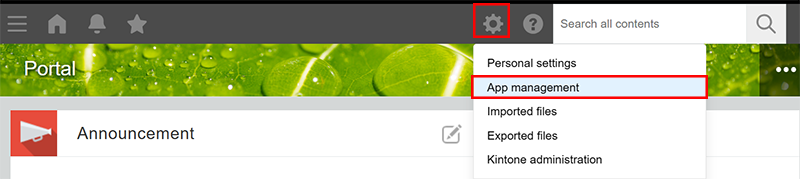
Click the Settings icon (the gear-shaped icon) at the top of Kintone, then click App management.
-
On the App management screen, click the Last updated date of record column name in the Apps section to sort apps in ascending order (from oldest to newest).
Apps are displayed in ascending order of the last updated date of record from oldest to newest, with the apps with the value (No data) shown first.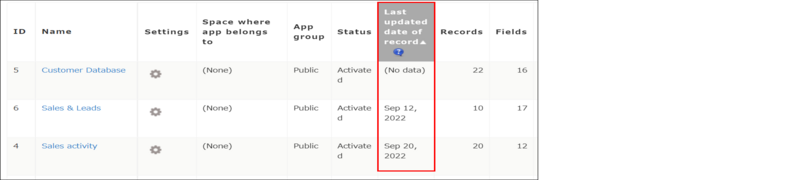
If an app's last updated record date is old or displayed as (No data), the app is likely not being used.
Columns to check besides "Last updated date of record"
For example, you may also confirm the following columns to narrow down the apps.
- Apps with New app displayed in the Name column
If an app has New app displayed in the Name column, its name hasn't been changed since it was created. - Apps with Not activated displayed in the Status column
If an app has Not activated displayed in the Status column, it is still being created and has not been activated yet. - Apps with "0" displayed in the Records column
If no new records have been added to such an app for a long time, it may have been created as a test and left unused.
Apps to exclude from deletion
Even if no records have been added or edited in an app for a long time, the app may be used for the main purpose of viewing or referencing data.
Examples: Budget master, Store master, Internal FAQ
These apps should be retained and should not be deleted.
Review existing apps
The following are ideas on how you can check whether it is all right to delete the apps that are likely to be unused.
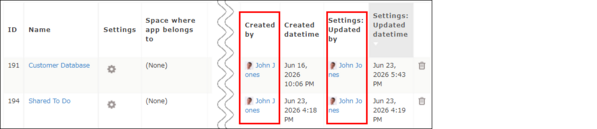
- Confirm the Created by and/or Settings: Updated by columns on the App management screen and contact the user displayed in them
- Add "To be deleted" to the app name, and see if there is any response from app users for a while
Reference: Changing an app name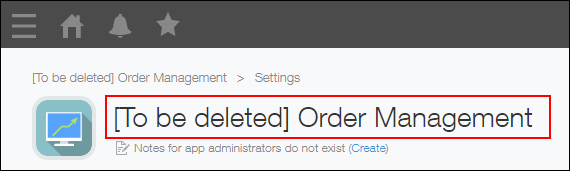
- Limit access to the app and wait for a while to see if there is any response from app users
Reference: Configuring permissions for apps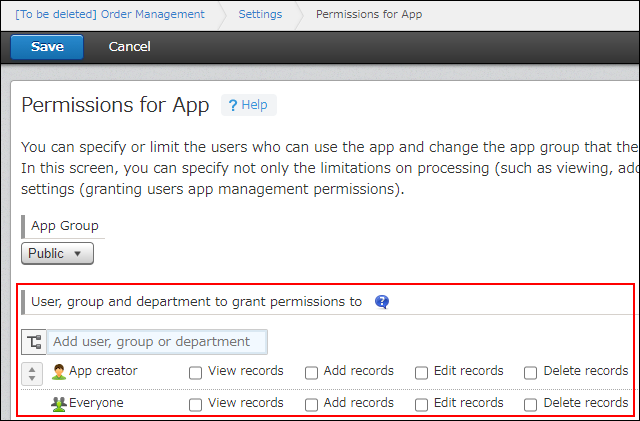
- Ask the "Created by" user to check on the App management screen whether it is all right to delete the app
Reference: Displaying only the apps created by you in the "Apps" section
Use a CSV file
You can also download a list of apps in a CSV file that contains the information of the Last updated date of record column.
The downloaded file can be used to analyze the app usage or to create a new app to manage and organize your apps when their number grows.