
Adding or deleting space members
You can add or delete space members for each space. You can also grant the space administrator permission to users.
However, these settings can be configured only when you are the current space administrator.
Adding space members
-
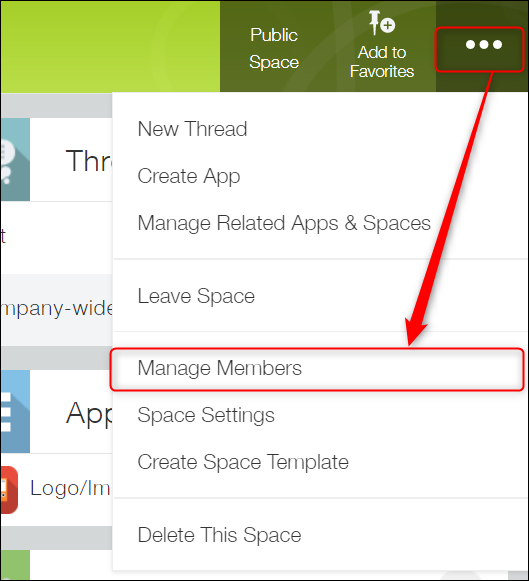
Click the Options icon at the upper right of the space screen, then click Manage members.
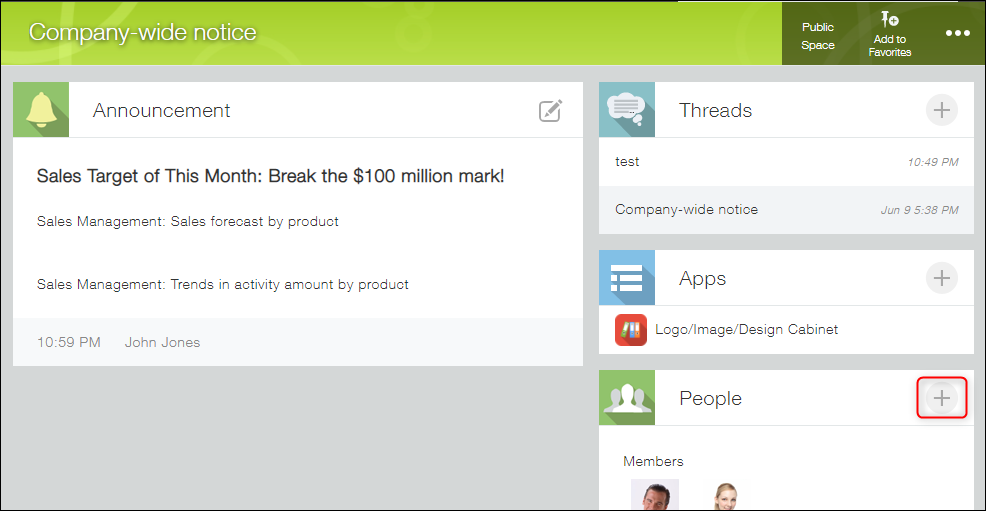
In a space with multiple threads enabled, you can also manage members from the Add member icon (the plus sign-shaped icon) in the People section of the space portal.
-
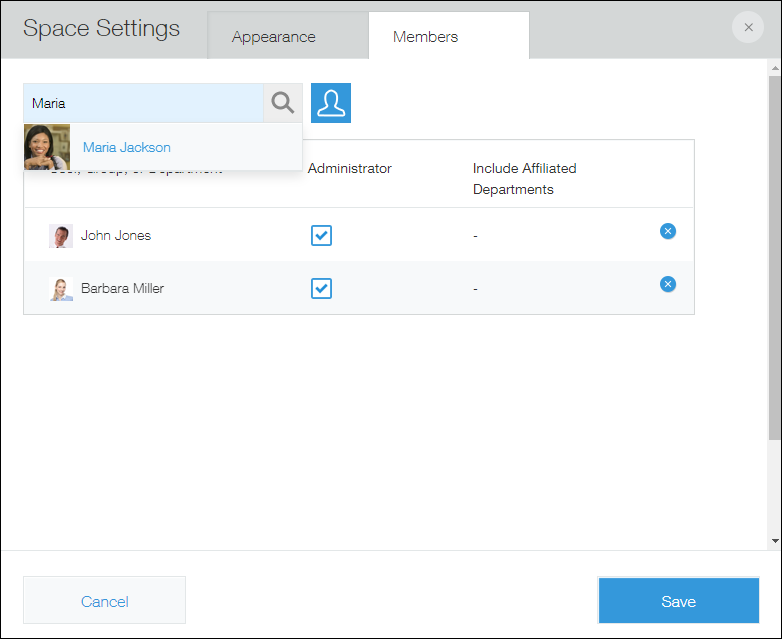
On the Members tab, select one or more users, departments, or groups, then click Save.
- To add a user, group, or department, search for users or use the Select users from departments or groups icon.
- If you select the Administrator checkbox for a user, that user is granted administrative permission for the space.
- If you select the Include affiliated departments checkbox, users who belong to affiliated departments are added as members of the space.
The added members are displayed in the People section on the space screen.
Deleting space members
-
Click the Options icon at the upper right of the space screen, then click Manage members.
-
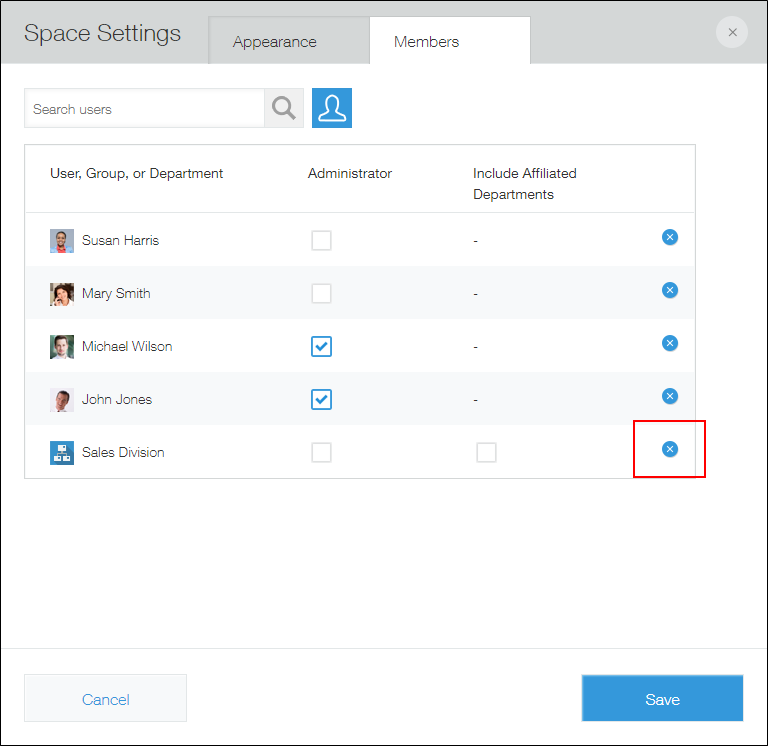
On the Members tab, click the Delete icon to the right of the user, group, or department that you want to delete, then click Save.
The deleted members will no longer be displayed in the People section on the space screen.