
Checking apps on the "App management" screen
On the [App Management] screen, under [App List], you can see which apps you have management privileges for.
You can also filter apps by specifying conditions such as app name or last updated date of records, or display only apps that you have created.
Steps
-
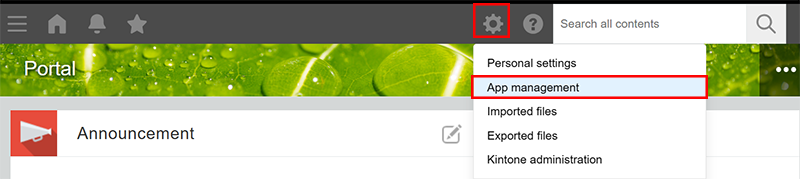
Click the Settings icon (the gear-shaped icon) at the top of Kintone, then click App management.
-
On the App management screen, check the information under Apps.
Overview of the "Apps" section
The details of the items displayed in the Apps section are described below.
Items displayed in the
Apps section vary depending on your environment and your license plan.

ID
Displays the app ID, which is automatically assigned to individual apps.
Name
Displays the app name.
When you click the app name, the app opens. If an app is currently under development and not yet activated, the app name is not clickable.
Settings
Click the Settings icon (the gear icon) to open the App settings screen.
Space where app belongs to
Displays the space to which the app belongs.
When you click the space name, the portal screen of the space opens.
If
(None) is displayed for an app, it means that the app does not belong to any space.
App group
Displays which app group the app belongs to. For details, refer to the following page.
What are app groups?
Status
Displays the status of the app.
- Not activated: The app is under development and has not yet been activated.
- Activated: The app has been activated.
- Changed: The app has been activated but changes to the setting have not yet been applied to the actual environment.
Last updated date of record
Displays the date when a record was last added or edited in the app.
If a record has never been added/edited after an app is created, the date on which the app was created is shown in the column.
If an app was created before the update in January 2021 and no record in the app has been added or edited since then, (No data) is displayed for the app.
The date displayed in the Last updated date of record column is updated when any of the following actions is carried out:
- Adding or editing a record on the Add new record or Edit record screen
- Adding or editing one or more records by importing a file (Excel/CSV)
- Adding or editing one or more records using an API
The date displayed in the Last updated date of record column is not updated by the following actions:
- Changing the process management status or assignees
- Posting comments
- Deleting a record
- Performing actions in the test environment
Records
Displays the number of records created in the app.
If the app is still under development and has not yet been activated, 0 is displayed.
Fields
Displays the number of fields placed in the app.
The following fields are not counted in the number of fields:
- Created by
- Updated by
- Created datetime
- Updated datetime
- Record number
- Label
- Space
- Border
- Categories
- Status (for process management)
- Assignee (for process management)
Field group fields and tables are also counted in the number of fields. For example, if a table contains a Checkbox field and a Text field, the total number of fields is three.
If the app is still under development and has not yet been activated, 0 is displayed.
API requests per day
Displays the number of requests via API on the day.
API requests are not counted for apps that are still under development and have not yet been activated, or for apps in the "Private" app group.
API tokens
Displays the number of API tokens generated for the app.
If no API tokens have been generated, 0 is displayed.
Webhooks
Displays the number of webhooks configured for the app.
If no webhooks have been configured, 0 is displayed.
Apps referencing this app
Displays the number of other apps referencing the app from a Lookup or Related records field.
This also includes references from apps in private spaces, guest spaces, and the "Private" app group.
Even if multiple fields in a single app reference the app, it counts as only one.
Total attachment size
Displays the total size of the following attachments in the app.
- Files added to the Attachment field of records in the app
- Files included in the change history of records in the app
The size of these files in the app's test environment is also counted toward the total attachment size.
The total file size appears in GB rounded to two decimal places. However, if the total size is between 0 and 0.01 GB, it appears as 0.01 GB.
To check the exact size in bytes, download the app list in CSV format.
For details, refer to the following page.
Downloading a list of your apps in CSV format
Regular users with access
This displays the number of regular users who have access to the app.
Kintone users & system administrator can check the number of regular users who can access each app by clicking the Retrieve manual update data button.
For more details, please refer to the next page.
Checking the number of users with access

Guest users with access
This displays the number of guest users who can access the app.
Kintone users & system administrators can check the number of guest users who can access each application by clicking the Retrieve manual update data button.
For more details, please refer to the next page.
Checking the number of users with access
App administrators
This displays the number of users who have been granted permission to change the app's settings.
Kintone users & system administrator can check the number of app administrators for each app by clicking the Retrieve manual update data button.
For more details, please refer to the next page.
Checking the number of app administrators
Created by
Displays the creator of the app.
Created datetime
Displays the date and time when the app was created.
The date and time is displayed regardless of the app status ("Not activated" or "Activated").
Settings: Updated by
Displays the user who last updated the settings of the app.
Settings: Updated datetime
Displays the date and time when the settings of the app were last updated.
Filtering the list of apps
You can specify conditions for the items on the Apps List to filter the apps. You can also combine multiple conditions to narrow down the list.
For example, if you filter the list to show only apps whose Last updated date of record is more than two years ago, you can efficiently find apps that have not been updated for a long time and are likely to be candidates for inventory checking.
-
In Filter conditions in the Apps section, click Add condition.
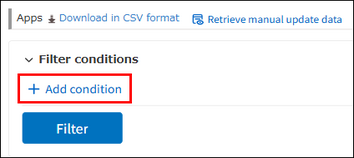
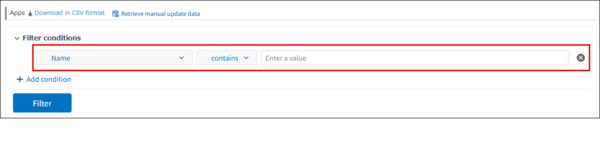
A new row for filter conditions appears.
-
Select items to filter by and specify conditions.
The available items and conditions are as follows.- ID
- Select = (equal to), ≧ (greater than or equal to), or ≦ (less than or equal to), and enter an integer.
- Name
- Select contains and enter text.
You can enter up to 64 full-width or half-width characters.
Filtering is not case-sensitive and does not distinguish between full-width and half-width characters. - Space where app belongs to
- Select contains or does not contain, and enter text.
If you select does not contain, apps that do not belong to any space also appear in the results.
You can enter up to 128 full-width or half-width characters.
Filtering is not case-sensitive and does not distinguish between full-width and half-width characters. - App group
- Specify includes any of or does not include any of, and select one or more app groups.
You cannot select the "Private" app group. - Status
- Select includes any of or does not include any of, and select one or more of Not activated, Activated, and Changed.
- Last updated date of record
- Select ≦ (on or before) or ≧ (on or after), and select a date from the calendar or enter it directly.
Apps displaying (No data) do not appear in the results. - Records
- Select = (equal to), ≧ (greater than or equal to), or ≦ (less than or equal to), and enter an integer.
- Fields
- Specify ≧ (greater than or equal to) or ≦ (less than or equal to) and enter an integer.
- API requests per day
- Specify ≧ (greater than or equal to) or ≦ (less than or equal to) and enter an integer.
- API tokens
- Specify ≧ (greater than or equal to) or ≦ (less than or equal to) and enter an integer.
- Webhooks
- Specify ≧ (greater than or equal to) or ≦ (less than or equal to) and enter an integer.
- Apps referencing this app
- Select = (equal to), ≧ (greater than or equal to), or ≦ (less than or equal to), and enter an integer.
Apps displaying (No data) do not appear in the results. - Total attachment size (GB)
- Specify ≧ (greater than or equal to) or ≦ (less than or equal to) and enter a numeric value in GB using half-width characters. You can specify up to the second decimal place.
The value displayed in the Total attachment size column is used for filtering. For details on the displayed file size value, refer to the following section.
Total attachment size
- Regular users with access
- Specify one of = (equal to), ≧ (greater than or equal to), or ≦ (less than or equal to), and enter an integer in half-width characters.
If Not retrieved is displayed in App List, you can filter the list after clicking the Retrieve manual update data button to retrieve the data. For details, see the following section.
Regular users with access - Guest users with access
- Specify ≧ (greater than or equal to) or ≦ (less than or equal to) and enter an integer.
If Not retrieved is displayed in the App List, you can filter apps after clicking the Retrieve manual update data button to retrieve data. For details, see the following section.
Guest users with access - App administrators
- Specify one of = (equal to), ≧ (greater than or equal to), or ≦ (less than or equal to), and then enter an integer.
If Not retrieved is displayed in the App List, you can filter apps after clicking the Retrieve manual update data button to retrieve data. For details, see the following section.
App administrators - Created by
- Specify includes any of and select one or more users.
- You can select up to 100 users.
- You cannot select inactive or deleted users.
- If the "Prohibit inter-organizational access" option is checked on the "Inter-organizational access rights" screen in Users & system administration, only Kintone users & system administrators and Kintone System Administrators can select users who belong to a different top-level organization. General users cannot make this selection.
- Created datetime
- Specify ≦ (on or before) or ≧ (on or after) and select a date from the calendar or enter a date directly.
Note that you cannot specify a time. - Settings: Updated by
- Specify includes any of and select one or more users.
- You can select up to 100 users.
- You cannot select inactive or deleted users.
- If the "Prohibit inter-organizational access" option is checked on the "Inter-organizational access rights" screen in Users & system administration, only Kintone users & system administrators and Kintone System Administrators can select users who belong to a different top-level organization. General users cannot make this selection.
- Settings: Updated datetime
- Specify ≦ (on or before) or ≧ (on or after) and select a date from the calendar or enter a date directly.
Note that you cannot specify a time.
-
To filter by multiple conditions, repeat Steps 1 and 2.
-
Click Filter.
Apps that meet the conditions appear.
Displaying only the apps created by you in the "Apps" section
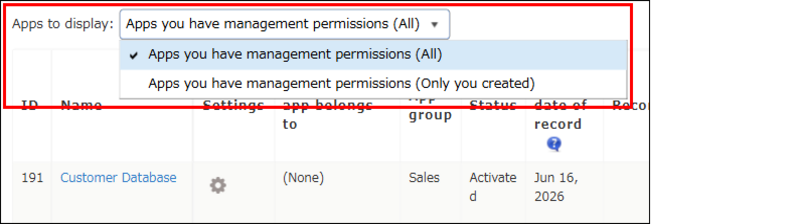
Under Apps to display, select Apps you have management permissions (Only you created) to display only the apps you created.
Use this option to find an app you were working on and resume its setup, or to organize or delete apps you created.
Changing the order in which apps are displayed in the "Apps" section
In the app list, you can click a field name to sort apps in ascending or descending order.
You can sort by the following fields.
- ID
- Name
- Space where app belongs to
- App group
- Status
- Last updated date of record
- Records
- Fields
- API requests per day
- API tokens
- Webhooks
- Apps referencing this app
- Total attachment size
- Regular users with access
- Guest users with access
- App administrators
- Created by
- Created datetime
- Settings: Updated by
- Settings: Updated datetime