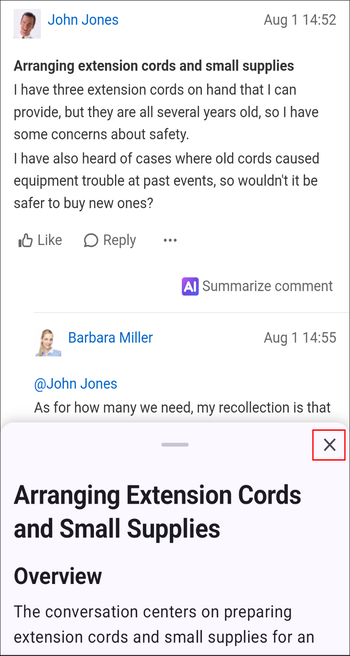
Using AI Thread Summary in the mobile app for Android
This section describes how to use the AI Thread Summary feature in the Android mobile app.
Settings for using AI Thread Summary in the mobile app
To use the AI Thread Summary feature in the Android mobile app, you must make the following preparations in the desktop view.
- A Kintone administrator must have enabled Kintone AI and selected to use the AI Thread Summary feature.
For details on how to configure these settings, refer to the following page.
Enabling Kintone AI and selecting features to use - A Kintone administrator must have set which spaces and users can use the AI Thread Summary feature.
For details on how to configure these settings, refer to the following page:
Setting which spaces and users can use AI Thread Summary
If a Kintone administrator has not set which spaces and users can use the AI Thread Summary feature, the Summarize thread and Summarize comment buttons will not be displayed even if you open a thread.
Limitations and information included in summaries
The limitations and information included in summaries when using the AI Thread Summary feature in the Android mobile app are the same as those for the desktop view.
For details, refer to the following pages:
Steps
This section describes the basic steps to use the AI Thread Summary feature in the Android mobile app.
Summarizing entire threads
These are the steps to summarize all the comments posted on a thread.
-
Open the mobile app for Android.
-
Open the space where you want to use the AI Thread Summary feature.
-
Open a thread.
-
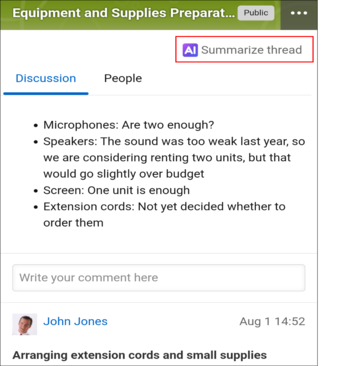
Tap Summarize thread next to the thread title.
When you tap Summarize thread, the AI will begin generating a summary immediately.
Summarizing a post and its reply comments
These are the steps to summarize a specific post and its reply comments.
-
Open the mobile app for Android.
-
Open the space where you want to use the AI Thread Summary feature.
-
Open a thread.
-
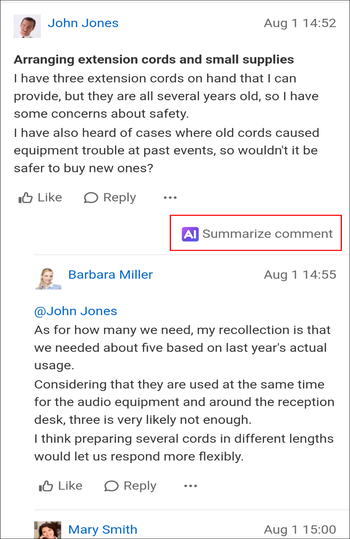
Tap Summarize comment displayed on the post you want to summarize.
When you tap Summarize comment, the AI will begin generating a summary immediately.
Checking the generated summary
The steps described below, from checking the generated summary to closing the screen, apply to both summarizing methods above.
-
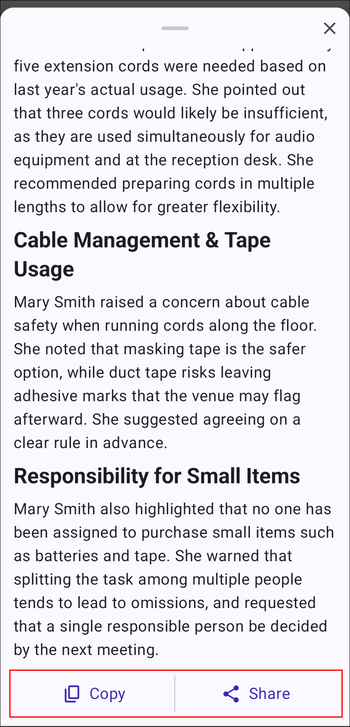
Check the generated summary.
- Tap Copy to copy the generated summary.
- Tap Share to display a menu at the bottom of the screen where you can select the destination app. You can share the generated summary with other apps installed on your device, such as email apps.
-
Tap the Close button to close the summary result.