
Configuring thumbnails for images
This article explains the setting to display thumbnails (reduced-size versions of images) of images attached to records.
By default, thumbnails are enabled.
Supported file formats
If thumbnails are enabled, thumbnails will be displayed for images with the following file formats when they are attached to "Attachment" fields.
- BMP
- GIF
- JPG
- PNG
How files are displayed with thumbnails enabled/disabled
Depending on your settings, the way in which files will be displayed will differ as follows.
If thumbnails are enabled
Attached images will be displayed on records as thumbnails.
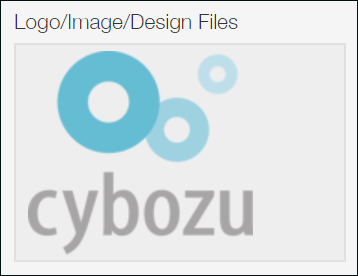
When you click the thumbnail, the image is displayed in the actual size.
If the actual image size is larger than the size of your Web browser, the image is displayed in the size that fits your Web browser.
You can enlarge or reduce the size of the displayed image.
If thumbnails are disabled
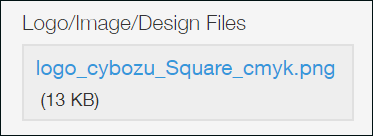
Attached images will be displayed on records as their file name.
Steps
To enable or disable thumbnails, follow the steps below.
-
Click the App settings icon (the gear-shaped icon) at the upper right of the View screen.

-
On the App settings screen, select the App settings tab, then click Misc settings under Advanced settings.
-
On the Misc settings screen, change the Show thumbnails setting.
Select the checkbox if you want to enable thumbnails.
To disable thumbnails, deselect the checkbox. -
Click Save at the bottom right of the screen.
-
Click Update app at the upper right of the screen.
-
On the Update app dialog, click Update app.