
Changing/deleting app actions
You can change or delete app actions from the Actions screen.
Changing app action settings
-
Click the App settings icon (the gear-shaped icon) at the upper right of the View screen.

-
On the App settings screen, select the App settings tab, then click Actions under Advanced settings.
-
On the Actions screen, click the Edit icon for the app action that you want to change.

-
On the Edit action screen, change the settings as necessary.
Configuring app actions -
Click App settings in the message displayed at the top of the screen, or click Back to app settings at the bottom left of the screen.
-
Click Update app at the upper right of the screen.
-
On the Update app dialog, click Update app.
Deleting app actions
-
Click the App settings icon (the gear-shaped icon) at the upper right of the View screen.
-
On the App settings screen, select the App settings tab, then click Actions under Advanced settings.
-
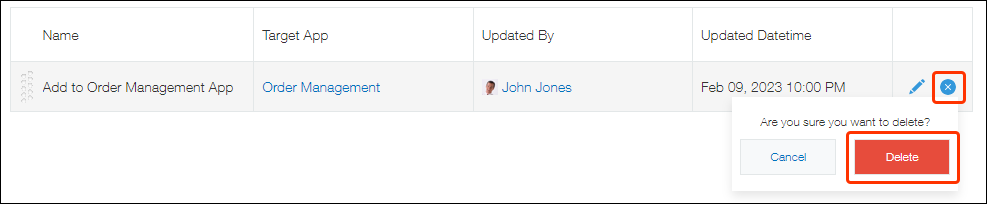
On the Actions screen, click the Delete icon for the app action that you want to delete, then click Delete.
-
Click App settings in the message displayed at the top of the screen, or click Back to app settings at the bottom left of the screen.
-
Click Update app at the upper right of the screen.
-
On the Update app dialog, click Update app.