
Notes on exporting records to a file
You can export records, record comments, aggregated data, and pivot tables to a file.
This page describes notes on exporting records and record comments. Read this page before exporting the data.
- Notes on exporting records
- Notes on exporting record comments
- Notes on exporting files to use for updating records in bulk
Notes on exporting records
- Required permissions
- Exporting records requires the Export to file permission in the Permissions for app settings.
By default, the Export to file permission is granted only to the user who created the app in the Permissions for app settings. Grant the Export to file permission to the users who will export records as necessary.
For details, refer to the following page:
Configuring permissions for apps - Records or fields for which the user is not granted view permission cannot be exported to a file. Grant the view permission for those records or fields to the users who will export them as necessary.
For details, refer to the following page:
Permission settings
- Exporting records requires the Export to file permission in the Permissions for app settings.
- Limitations
-
The following data cannot be exported to a file.
- Label fields
- Attachment fields
- Related records fields
- Change history
-
Depending on the type of data, you may be able to export the data to a file but not import it back into an app.
For details, refer to the following page:
Import/export of app data -
If the size of a file to be exported exceeds 100 MB, the export fails. In such a case, reduce the number of fields and records to export at one time.
-
Notes on exporting record comments
- Prerequisites for exporting record comments
- Record comments cannot be exported independently. When you export records and select the Export record comments checkbox in the Output options section, the comments are exported to a separate CSV file.
- You can export record comments only from apps where the record comment feature is enabled.
- Required permissions
Record comments for records for which the user is not granted view permission cannot be exported to a file. Grant the view permission for those records to the users who will export the comments as necessary.
For details, refer to the following page:
Configuring permissions for records - Output format
The users who posted record comments are exported by their login names. - Limitations
- Record comments can be exported to a file but cannot be imported back into an app.
For details, refer to the following page:
Import/export of app data - The export process fails if the size of the file to be exported exceeds 100 MB. Filter the records to be exported at one time.
- Record comments can be exported to a file but cannot be imported back into an app.
Notes on exporting files to use for updating records in bulk
If you want to use the exported file to bulk update the record data in your app, export the following fields:
- Fields that you want to update the values for
- The field to specify under Update key
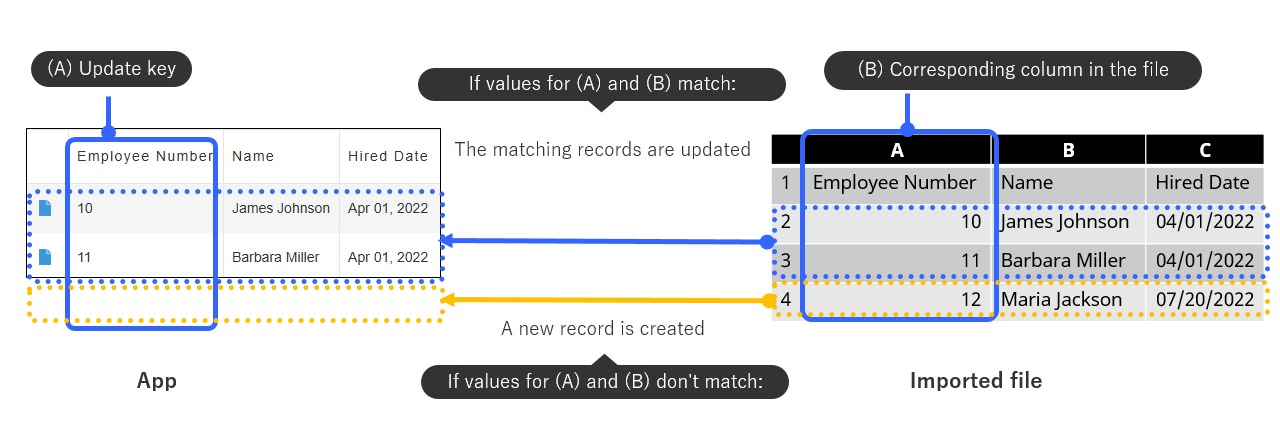
The field specified under Update key is used to identify which records in the app should be updated with data from your file.
When you import your file, whether existing records are updated or new ones are added depends on whether the value in the app field specified under Update key matches a value in the corresponding column in your file.
- If a value in the app field specified under Update key matches a value in the corresponding column in your file: The corresponding existing record will be updated with the data in your file.
- If a value in the app field specified under Update key does not match a value in the corresponding column in your file: A new record will be added with the data from that row in your file.
Fields that can be specified under "Update key"
One of the following fields can be set under Update key.
- Record number
- Text
- Number
- Date
- Date and time
- Link
Notes on specifying an update key
When specifying a field as an update key, make sure to keep in mind the following.
- The field set under Update key must be one that does not accept duplicate values across multiple records.
- The Record number field contains unique values automatically assigned when each record is added, ensuring no duplicates exist in the same app. For this reason, it is often set under Update key.
- However, if you set the Record number field as the Update key, an error will occur if the corresponding file column contains a record number that does not exist in the app.
- If you want to have new records added when using the Record number field as the update key, leave their value in the corresponding file column blank when you input the data in your file.
- If you want to set a field other than the Record number field (a Text, Number, Date, Date and time, or Link field) under Update key, you need to enable Prohibit duplicate values in its field settings.