Kintone keyboard shortcuts
The permanent link has been copied.
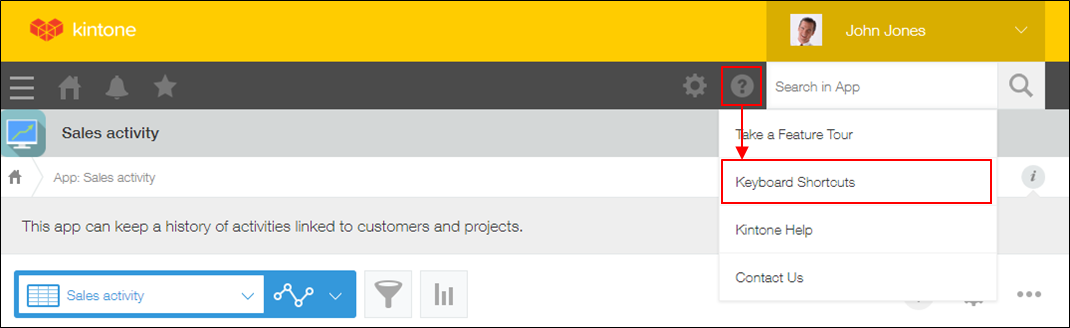
Using keyboard shortcuts lets you quickly navigate Kintone without using a mouse or other device.Keyboard Shortcuts from the Help icon (the question mark icon) at the top of the screen.
The following tables show the lists of keyboard shortcuts available on various screens.
Keyboard Shortcuts Actions enter Show details of the selected record / Enter search keywords ? Show or hide "Keyboard Shortcuts" screensc Add a new record e Edit the selected record j Move to the next record k Move to the previous record n Go to the next page o Show details of the selected record p Go to the previous page
Keyboard Shortcuts Actions / Enter search keywords esc Cancel editing ? Show or hide "Keyboard Shortcuts" screensc Add a new record e Edit the selected record g a Go back to the view g i Show the filter results j Move to the next record k Move to the previous record Ctrl+s Save changes
Keyboard Shortcuts Actions / Enter search keywords ? Show or hide "Keyboard Shortcuts" screensCtrl+s Save changes
Keyboard Shortcuts Actions enter Open the selected notification ? Show or hide "Keyboard Shortcuts" screense Show or hide action buttons for notifications g a Change filter to "All" g m Change filter to "To Me" g r Show read notifications g s Change filter to "Flagged" g u Show unread notifications j Move to the next notification k Move to the previous notification s Flag or unflag the selected notification x Mark the selected notification as read or unread
Keyboard Shortcuts Actions ? Show or hide "Keyboard Shortcuts" screensj Move to the next notification k Move to the previous notification s Flag or unflag the selected notification u Return to the notification list