
Duplicating fields
You can duplicate existing fields within the same app form. When a field is duplicated, its settings except the field code are also duplicated.
This is useful when you want to create multiple similar fields. In this way, you can save the effort of manually setting them up.
The following are the steps to duplicate a field.
-
Click the App settings icon (the gear-shaped icon) at the upper right of the View screen.

-
On the App settings screen, click the Form tab.
-
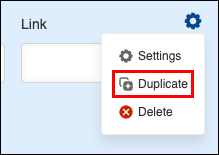
Hover your cursor over the Settings icon (the gear-shaped icon) at the upper right of the Lookup field that you want to duplicate on the form settings screen, then click Duplicate.
-
Click Save form on the upper left side of the screen.
-
Click Update app at the upper right of the screen.
-
On the Update app dialog, click Update app.