
Adding bookmarks
The Bookmark feature in Kintone allows you to save a page's URL, similar to the "Favorite" or "Bookmark" features found in web browsers. Bookmarks are saved on a per-user basis.
You can bookmark various pages including filter-applied view pages, aggregate result pages, and search result pages.
Saved pages are displayed under the Bookmarks icon (the star-shaped icon at the top of kintone) in three categories: Apps, Search results, and Other.
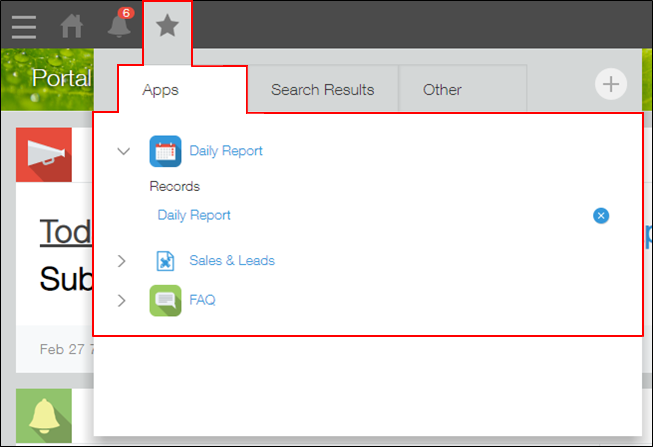
Adding a bookmark
-
Open the page that you want to bookmark.
-
Click the Bookmarks icon (the star-shaped icon) at the top of Kintone.
-
Click the Bookmark this page icon (the plus sign-shaped icon).
The Bookmark this page dialog opens, and the page title and URL are automatically entered in the Name and URL fields.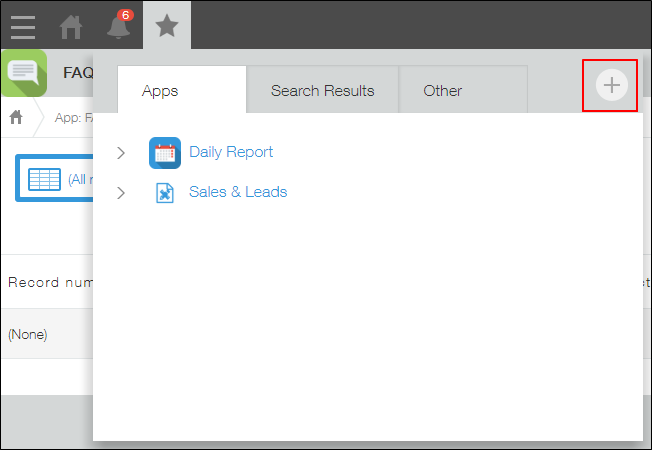
-
Edit the name and URL as needed.
-
Click OK.
Deleting a bookmark
-
Click the Bookmarks icon (the star-shaped icon) at the top of Kintone.
-
Click the Delete icon to the right of the bookmark that you want to delete.
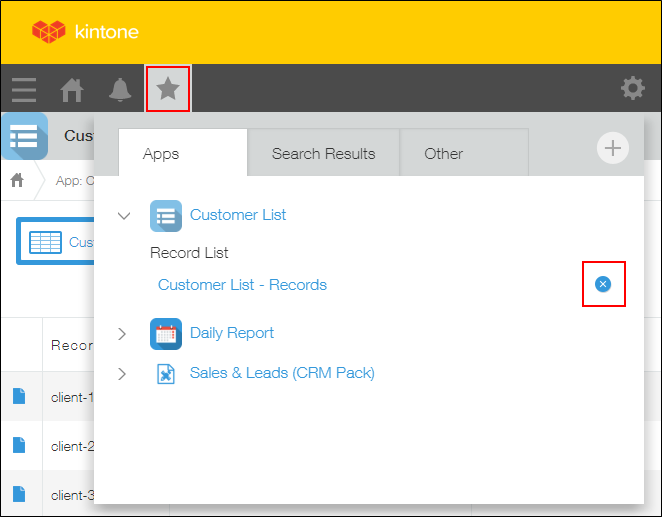
-
Click Delete on the confirmation dialog.