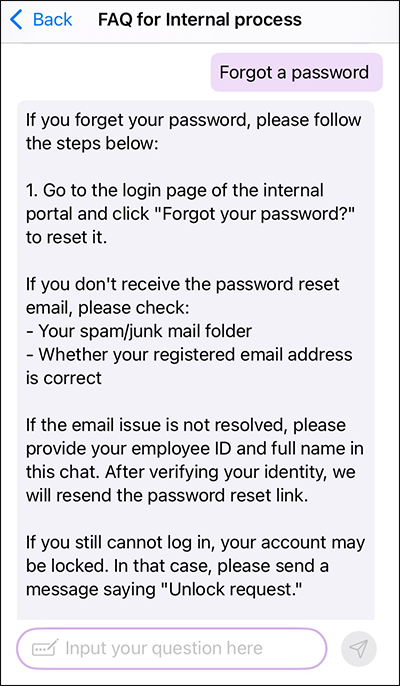
Using AI Search in the mobile app for iOS
This article explains how to use the AI Search feature in the mobile app for iOS.
Settings for using AI Search in the mobile app
To use the AI Search feature in the mobile app for iOS, the following settings need to be configured on a PC.
- A Kintone administrator must have enabled Kintone AI and selected to use the AI Search feature.
For details on how to configure these settings, refer to the following page.
Enabling Kintone AI and selecting features to use - A Kintone administrator needs to have created at least one AI Search chatbot to use in the desktop view.
For details on how to configure these settings, refer to the following page.
AI Search chatbot settings- Note that where and by whom an AI Search chatbot can be used is determined by the settings configured by Kintone administrators.
- If there are no AI Search chatbots that you can use, the AI Search icon will not be displayed in the mobile app.
Limitations
You can send up to 10 questions or instructions. If you reach the limit, go back to the AI Search list, tap the one you want, and start a new conversation.
Steps
See below for the basic steps to use an AI Search chatbot in the mobile app.
-
Open the mobile app for iOS.
-
Tap the Open navigation menu icon (the three lines) at the upper left of the screen.

-
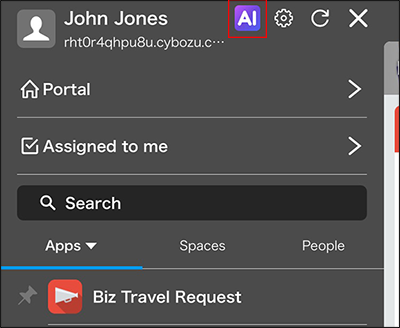
Tap the AI Search icon next to your user name.
-
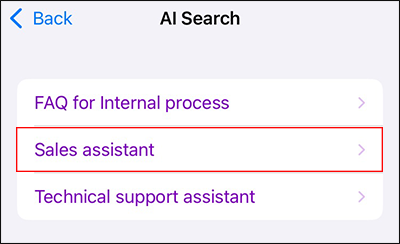
Tap the name of the AI Search chatbot that you want to use.
-
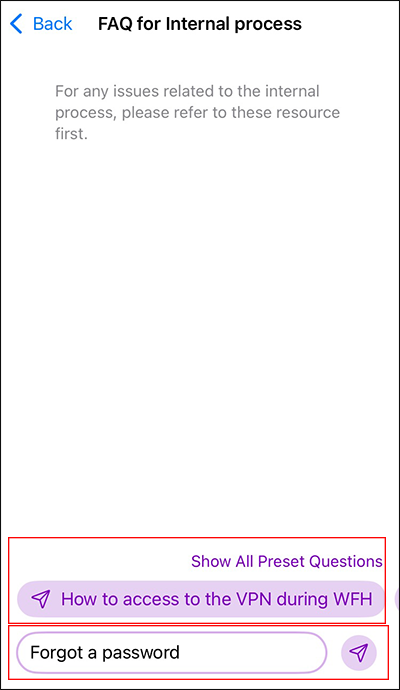
On the chatbot screen, tap a prompt button, or enter a question or instruction and then tap Send.
When you tap Show All Preset Questions, a list of preset prompt buttons appears.
-
Check the answer from AI Search.