Drop-down
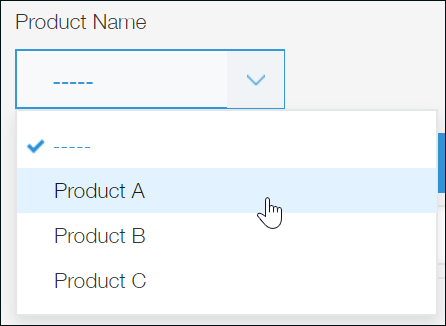
Placing a Drop-down field on an app form creates a field that allows users to select a single option from a predefined list.
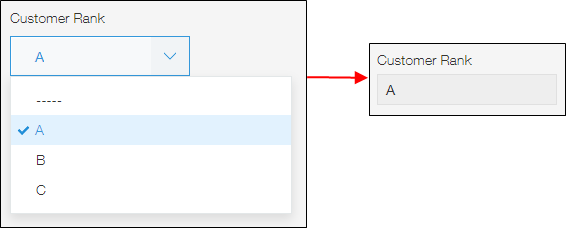
Drop-down fields are displayed closed on the New Record or Edit Record screen. When a Drop-down field is clicked, a list of options is displayed and only one can be selected.
Only the options that have been selected are displayed on the
Record details screen.
Field settings
Name
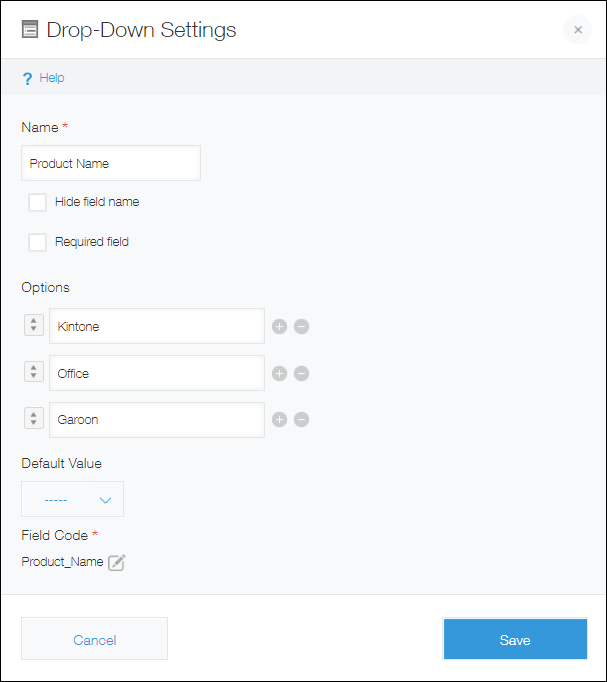
Specify the field name. The field name is displayed as the label of the field in the app.
Hide field name
Selecting the Hide field name checkbox hides the field name on the following screens.
- The Add record screen
- The Edit record screen
- The Record details screen
- The screen for printing a record
- The Form settings screen
Required field
Selecting the Required field checkbox makes specifying a value mandatory.
Options
Enter the field options. You can add up to 1,000 options, with up to 128 characters for each option.
Add an option by clicking the plus sign-shaped Add icon to the right of an option input field, or by pressing the Enter key when the last option input field listed is selected.
Remove an option by clicking the minus sign-shaped Delete icon to the right of the option input field.
Change the order of an option by dragging and dropping the arrow icon to the left of the option input field.
Default value
Specify options to be selected by default.
Field code
This is the code used for specifying the field in formulas or APIs.
Usage examples
Use Drop-down fields when you want to make it possible to select only one option from a list.
Drop-down fields are displayed closed on the New Record or Edit Record screen. For this reason, you may want to use one when there are too many options and a Radio button field would take up too much space.
For example, the Calculated field can be used in the following ways.
- Selecting a single product in an app for price quotes
- Selecting a single customer category in a customer management app
- Selecting a single response status in an inquiry management app