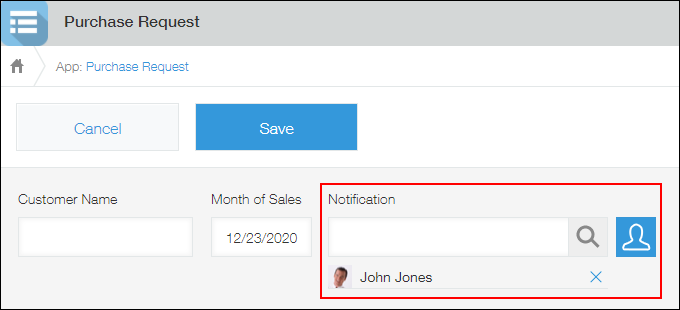
Sending notifications to users specified in each record
General notifications, per record notifications, or reminder notifications can be sent to users specified in each record.
To do so, add User selection fields on the app form, and then specify the added fields as recipients.
This article explains how to configure the settings using general notifications as an example.
Step 1: Configure the "User selection" field
-
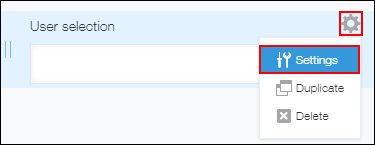
Place a User selection field, then click Settings from the gear-shaped Field settings icon at the top right of the field.
-
Set a name for the field.
In this example, "Notification" is used as a field name.
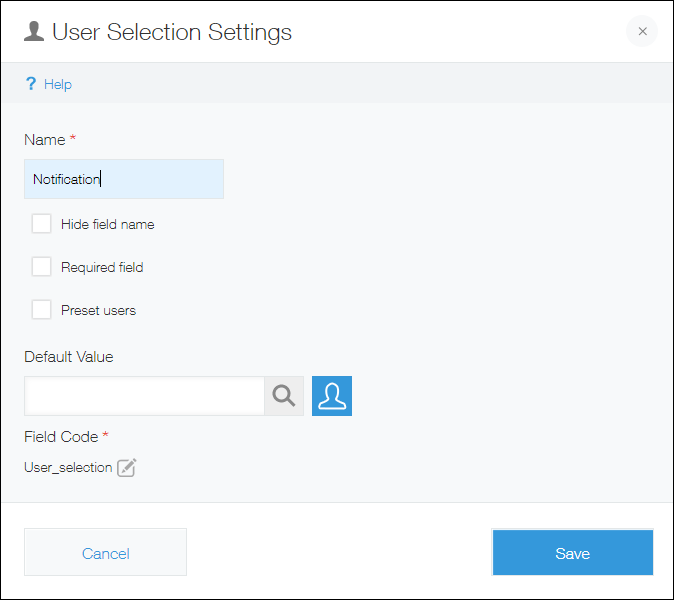 If you want to define a default user name to display, specify a user for Default value.
 -
Click Save.
-
Click Save form.
Proceed to the next step to configure general notifications.
Step 2: Configure general notifications
-
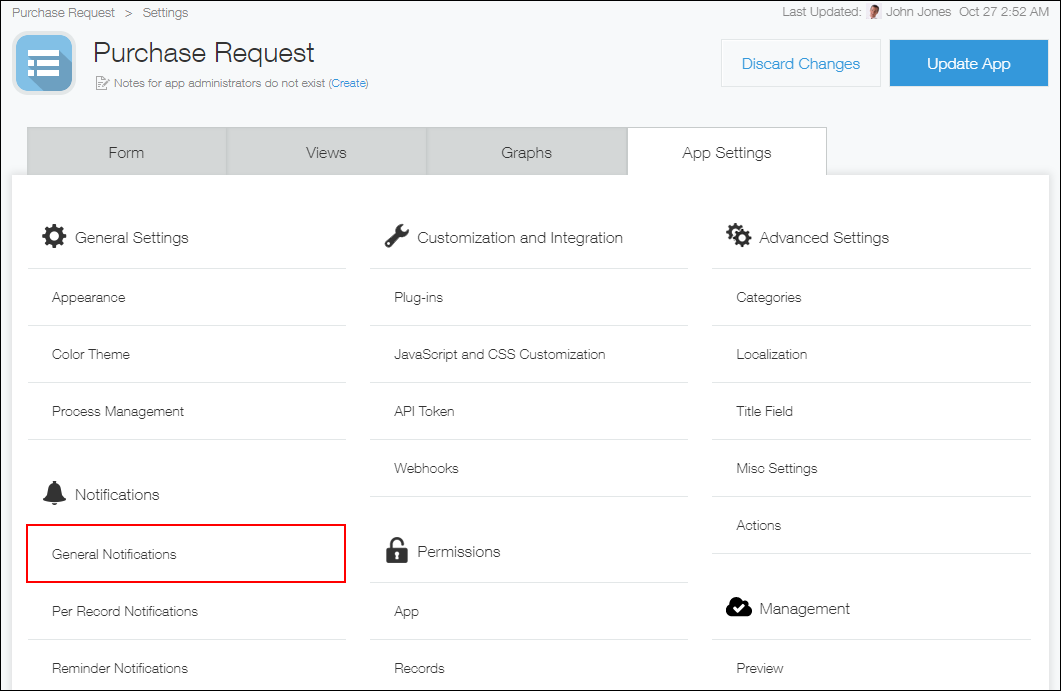
Click the App settings tab and click General notifications under Notifications.
-
From the Add a field for selection drop-down list, select the "User selection" field you configured in Step 1.
In this example, "Notification" is selected.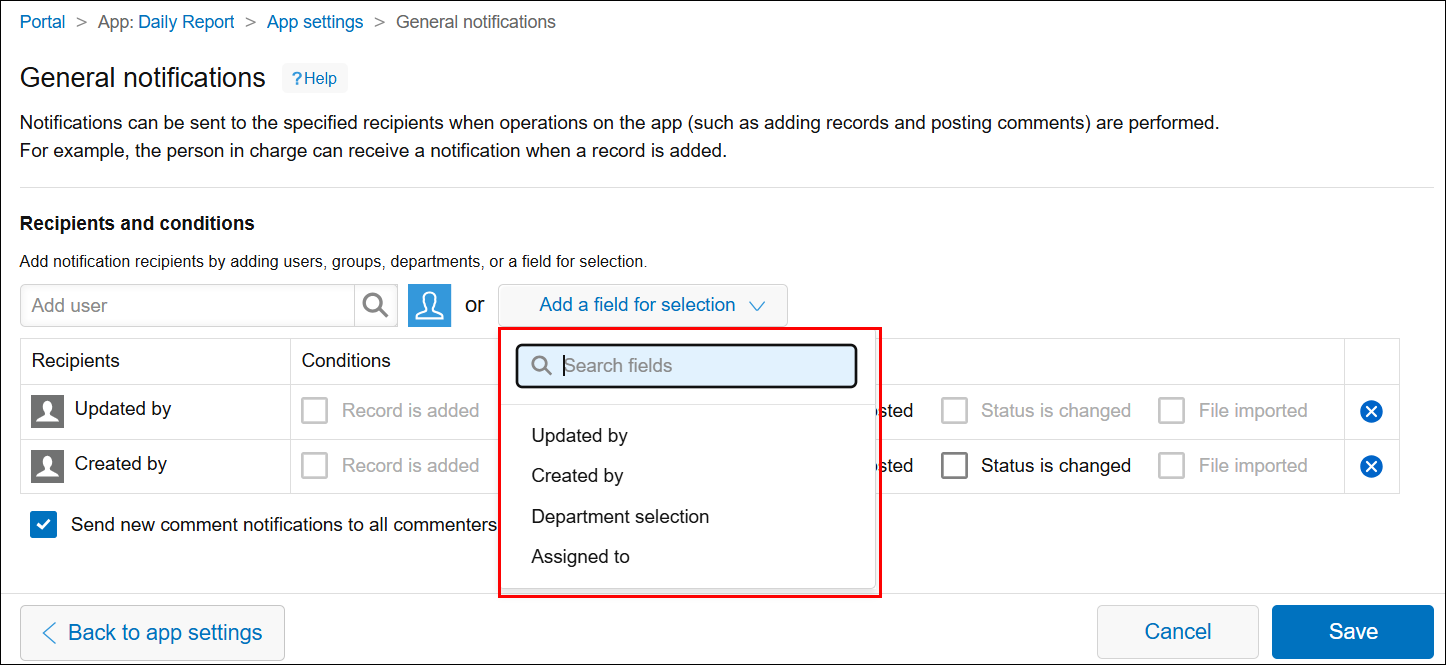
-
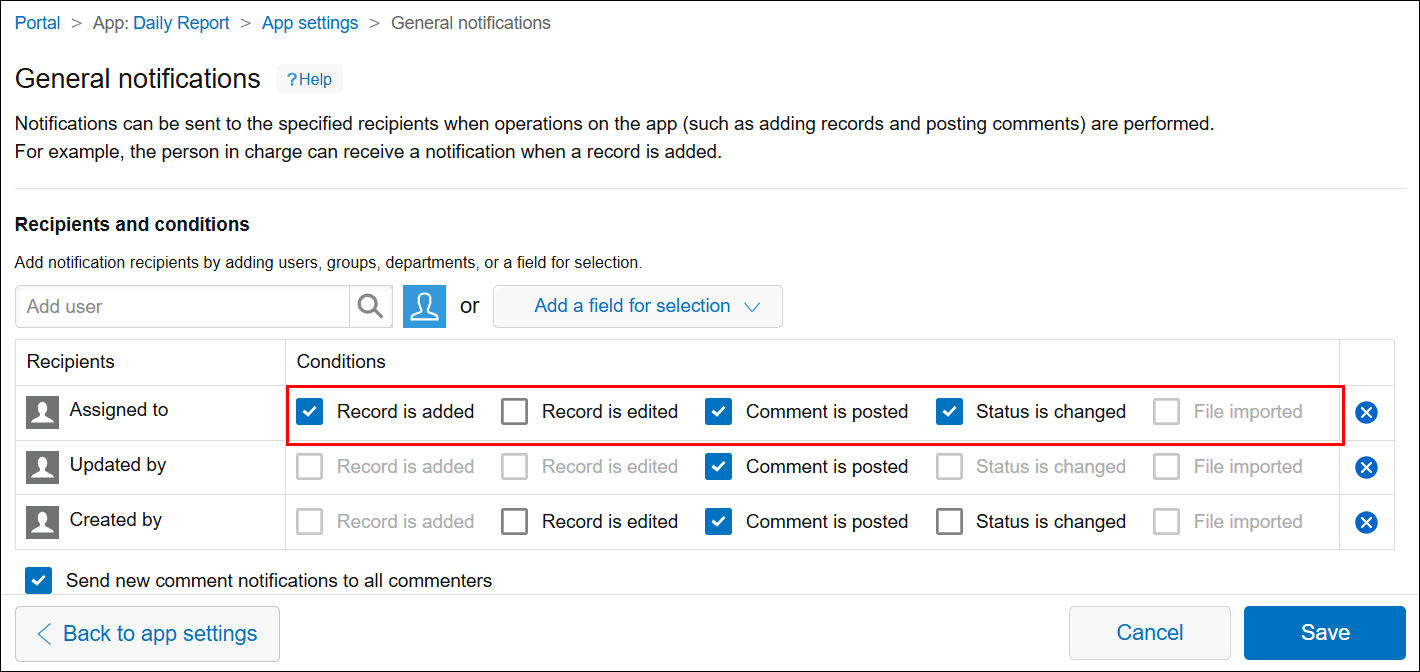
Select one or more conditions for sending notifications.
-
Click Save at the bottom right of the screen.
-
Click Update app at the upper right of the screen.
-
On the confirmation dialog, click Update app.
You have successfully configured the setting.
When you specify notification recipients in a record, the notification is sent to the specified users at the timing set in the General notifications setting.