Guest action: Linking your guest account and Kintone account
If you are invited to a guest space while you have your own Kintone license, you can link the guest account to your Kintone account.
After you link your accounts, you can use single sign-on to access the guest space you were invited to. Also, the inviter will no longer need to pay for your guest account.
After linking your accounts, you can use the features available under the guest space's subscription plan while inside the invited guest space.
Benefits of linking accounts
Linking accounts has the following benefits:
- You can use single sign-on. That is, you can access an invited guest space from your licensed account for Kintone without additional login procedures.
- The inviter no longer needs to pay for the guest account that you are using.
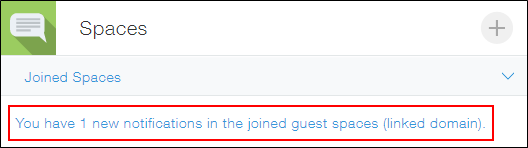
- Your licensed Kintone account displays the number of unread "To me" notifications that have been sent in a guest space of which you are a member.
Conditions for linking accounts
You can link a guest account to your Kintone account if both of the following conditions are met:
- You are invited to a guest space, or you have already joined a guest space as a guest (that is, you have a guest account).
- You or your company has a Kintone license (that is, you have your own Kintone account).
Note that trial accounts do not allow you to link guest accounts.
Steps to link accounts
There are two times when you can link accounts:
- When you are invited to join a guest space
- When you have already joined a guest space
Linking accounts when you are invited to join a guest space
When you join the guest space you were invited to, you can select Use Kintone account to link accounts.
For details, refer to the following page:
Guest action: Joining a guest space you've been invited to.
Linking accounts when you have already joined a guest space
You can also link accounts even after you have joined the invited guest space.
-
Use the guest account to log in to the space you joined.
-
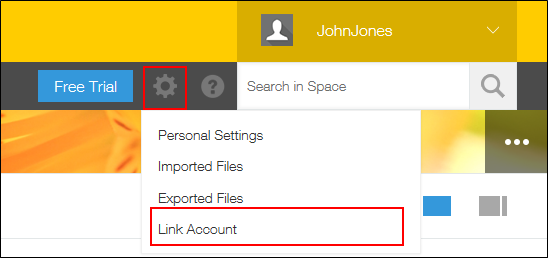
Click the Settings icon (the gear-shaped icon) at the top of Kintone, then select Link account.
-
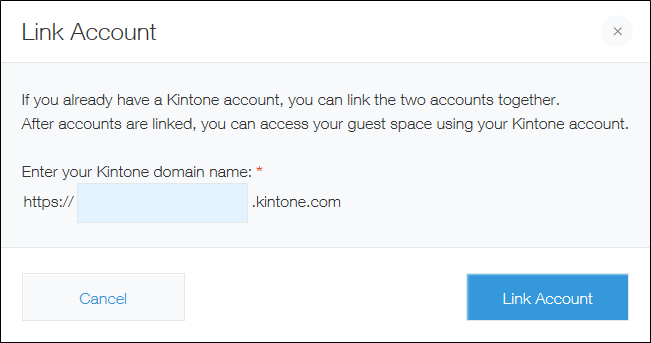
On the Link account dialog, enter your domain in the Enter your Kintone domain name field, then click Link account.
If you do not know the URL, refer to the following section:
Checking the URL of Kintone
-
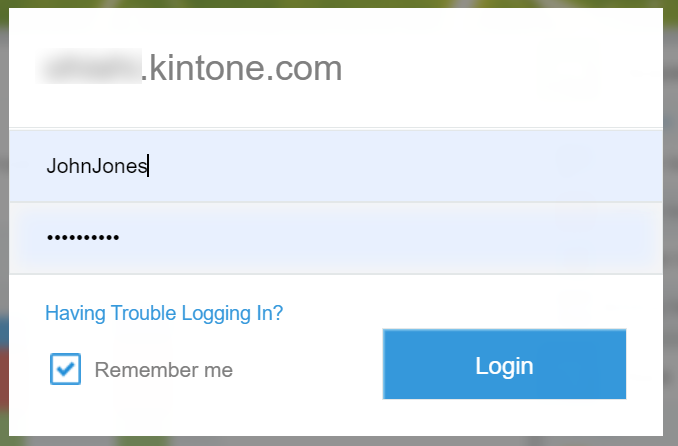
From the login screen, log in to your company's Kintone account.
If you are already logged in, skip this step.
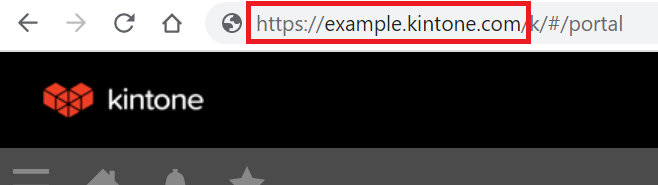
Related information: Checking the URL of Kintone
You can find your Kintone URL by accessing your company's Kintone environment and checking the URL in the address bar of your web browser.