
Setting the AI credit usage limit
This article explains how to set a monthly limit on the AI credit usage of the AI Text Generation JavaScript API for all of Kintone. Setting a limit helps prevent this API from using too many AI credits and making other AI features unavailable.
You can check this API’s usage for the current month on the AI credit usage screen. For details, refer to the following page:
Checking AI credit usage
Steps
-
Click the Settings icon (the gear-shaped icon) at the top of the Kintone screen, and then click Kintone administration.
-
Clicking Kintone AI management in the AI section on the Kintone administration screen opens the Kintone AI management screen.
-
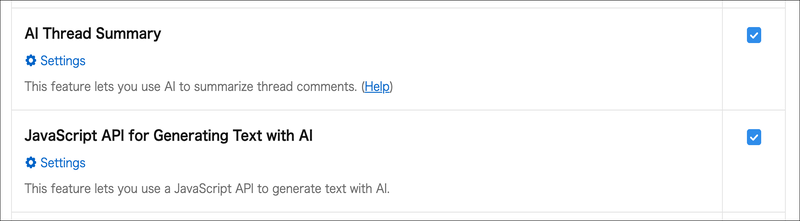
On the Kintone AI management screen, click Settings under JavaScript API for Generating Text with AI in the AI features section.
-
On the AI Text Generation JavaScript API settings screen, click the Set limit icon (the gear-shaped icon) to the right of (No limit set).
-
In the displayed input field, enter the number of AI credits to set as the limit.
-
Click Save.
The limit you have set is displayed.