
Label
Placing a Label field on your app form lets you display a heading or description text on the form.
You can change the font size and color of the displayed text to create headings that stand out more, or use the field to add supplementary information about input fields.
Field settings
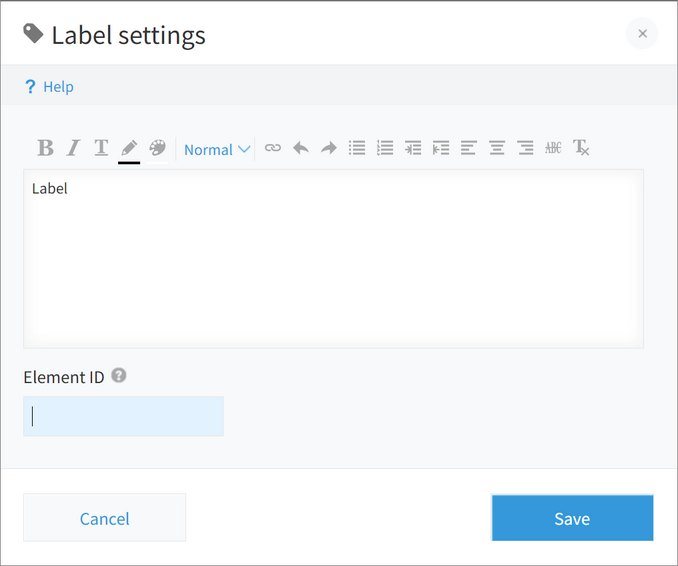
Label input field
This is a field for entering formatted text. You can change the color, highlight color, and size of the entered text, as well as add underlines, bullets, and more.
Element ID
When you use the customization feature, you can specify an element ID for a Label field.
For details on
Element ID, refer to the following page:
Values that can be used for "Element ID"
Usage examples
You can use a Label field to add a heading to a group of fields.

Label fields can also be used to display a description or note for input fields. You can also add links to them.
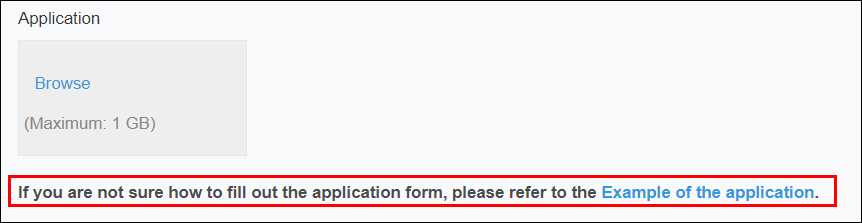
It is also possible to place Label fields inside a Field group field.
Field group fields are displayed collapsed on the app form. This makes them ideal for holding detailed explanations of apps, for example, which can be added to them using a Label field.
Also, you can configure the
Permissions for fields settings for Field group fields, so you can use a Field group field to display the content of a
Label field only to specific users.