
Deleting an app
You can delete an app on its App settings screen.
When you try to delete an app, apps that refer to it are automatically checked for. If such apps are detected, you can delete them in bulk using the Bulk Deletion feature.
Note that, deleting an app requires administrative permission for the app.
Steps to delete an app
-
Click the App settings icon (the gear-shaped icon) at the upper right of the View screen.

-
On the App settings screen, click the App settings tab, then click Delete this app under Deletion.
-
On the Delete app dialog, click Delete this app.
-
On the next Delete app dialog, click Delete app.
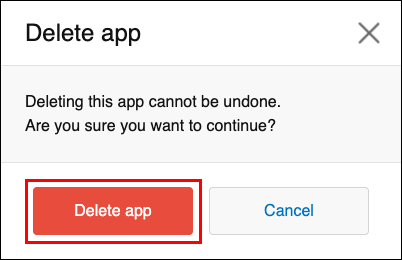
A check is automatically performed to see if there are any apps that refer to the one you are attempting to delete.
-
If there is no app that refers to the target app:
Deletion is performed. You do not need to take further action. -
If there are any apps that refer to the target app:
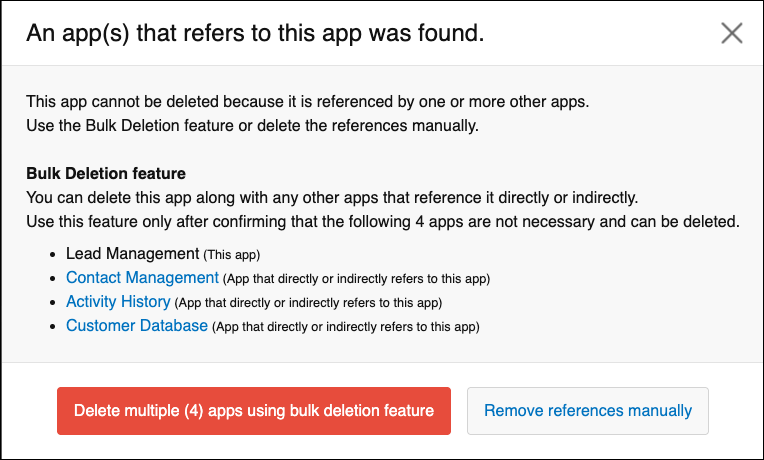
The "An app(s) that refers to this app was found" dialog appears. Proceed to the next step.
-
-
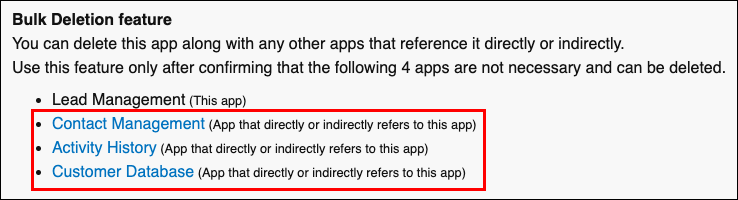
Make sure that no problems will be caused by bulk deleting the apps displayed on the An app(s) that refers to this app was found dialog.
-
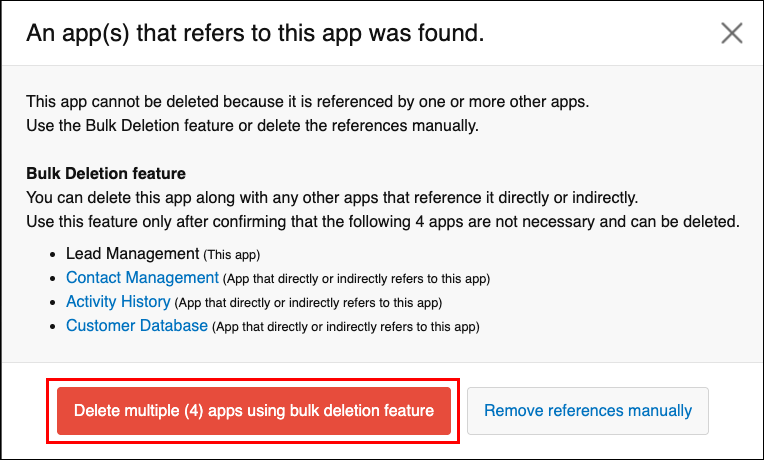
If it is all right to delete all the displayed apps together, click Delete multiple (***) apps using bulk deletion feature.
-
On the Delete multiple apps dialog, click Delete apps.
The apps are deleted all together.
Steps to remove an app's references and delete it separately from other apps
If there are any apps that directly refer to the target app, you cannot delete the target app alone.
To delete only the target app, you need to remove the references.
Apps and fields that contain references to the target app are automatically detected when you attempt to delete the app. Follow the steps below to navigate from the reference detection screen to the App settings screen of the app that contains references and then remove the references.
-
When the An app(s) that refers to this app was found dialog appears when you try to delete an app, click Remove references manually.
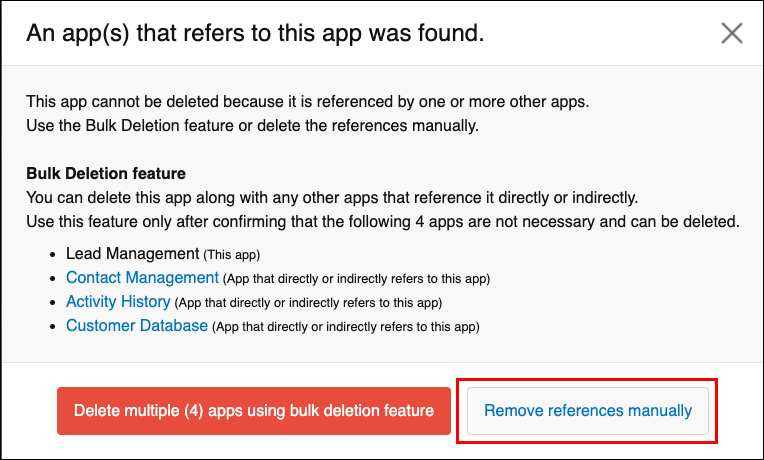
The Remove references manually dialog will appear with a list of the apps and fields that contain direct references to the target app. -
On the Remove references manually dialog, click the Open the app settings dialog.
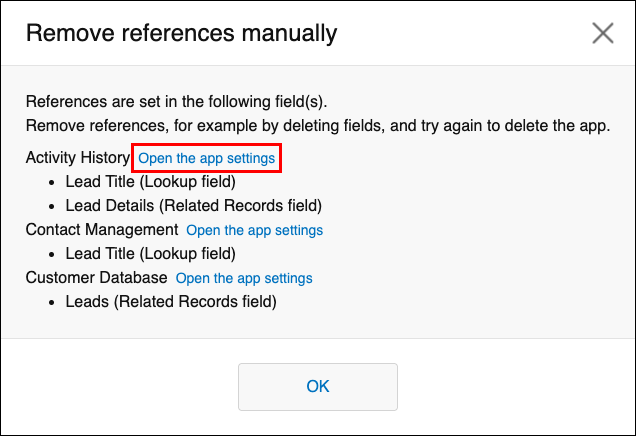 The App settings screen will open.
 -
Delete any Lookup and Related records fields that are displayed on the Remove references manually dialog, then update the app.
In this example, we'll delete the Activity History app's "Lead Title" field (a Lookup field) and "Lead Details" field (a Related records field) that were displayed in Step 2.
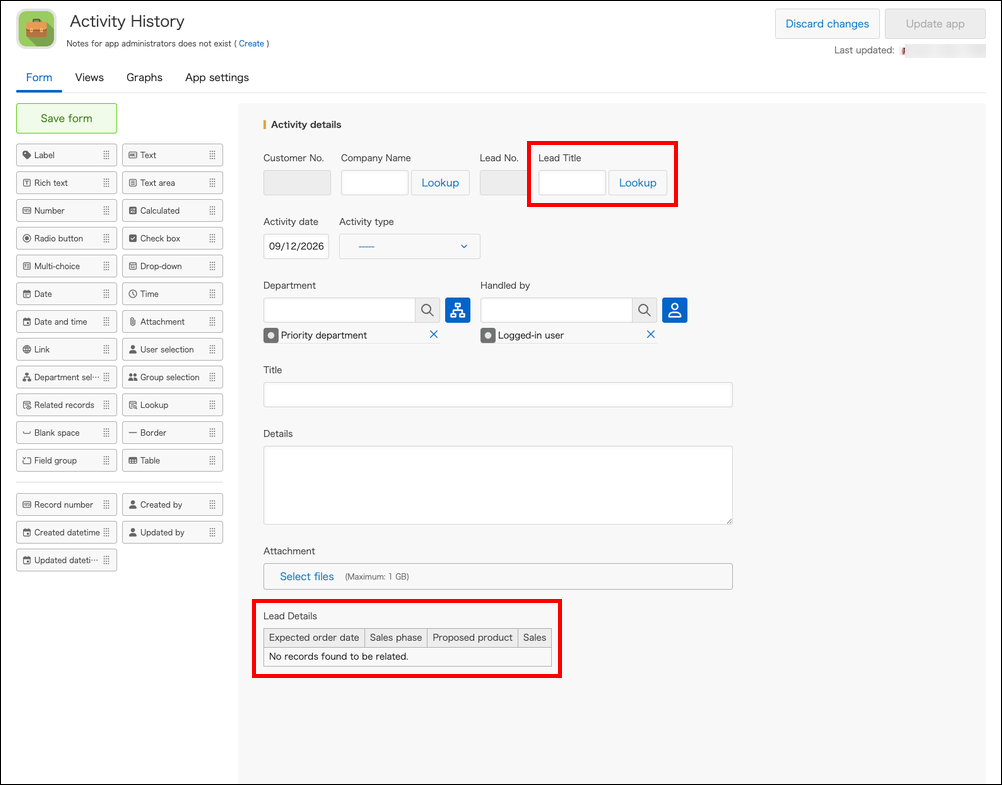
-
If there are multiple apps that contain references to the target app, repeat Step 2 and Step 3 until they are all deleted.
-
Navigate to the App settings screen of the target app, click Delete this app under Deletion on the App settings tab, and try deleting the app again.
If an error message appears when you try to delete an app
If an error message appears when you click Delete app, it is likely because the app you are trying to delete is referred to by a Lookup or Related records field in an app for which you do not have administrative permission.
Error example:
Cannot delete the app. A field in the app has been referred from a Lookup field "***" in an app "***". Change the "***" field setting or delete the field itself in "***".

In such a case, perform one of the following actions.
- Ask the administrator of the app specified in the error message to delete the Lookup or Related records field that is causing the error.
- Ask an administrator who has administrative permission for both the app to be deleted and the app specified in the error message to carry out the deletion.