Checking the progress of file export / Downloading exported files
You can export records or aggregated data from an app to a file.
When you export data to a file, you are navigated to the Exported files screen, where you can check the export status and download the exported file.
The Exported files screen displays only the file exports that you have performed yourself.
Exported files are available for download for three days from the time when their export was initiated.
How to access the "Exported files" screen
When you export records or aggregated data to a file, you are automatically navigated to the Exported files screen.
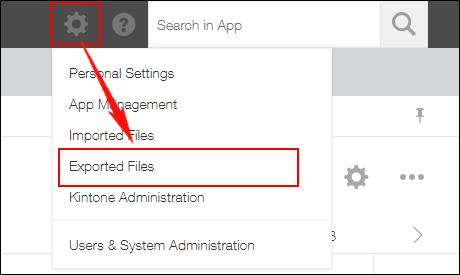
To open the Exported files screen manually (e.g., if you want to download an exported file again), click the Settings icon (the gear-shaped icon) at the top of Kintone, then click Exported files.
Checking file export statuses on the "Exported files" screen
Exported files are listed in descending order based on the date and time specified in the Export started column.
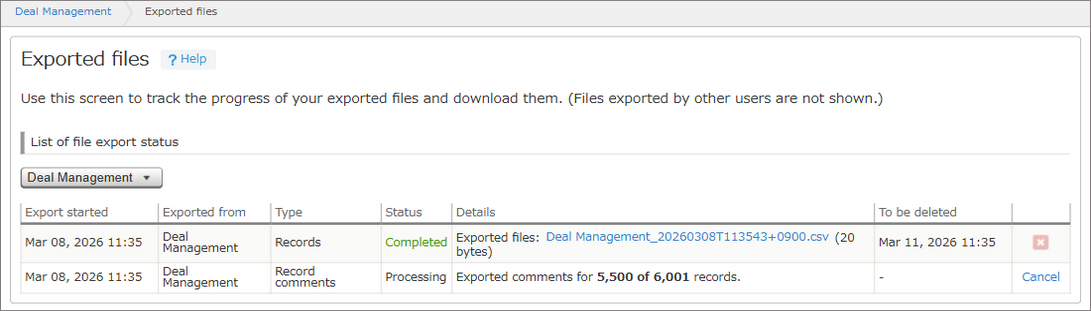
When you are navigated to the Exported files screen after exporting a file, the row of the file you just exported is highlighted. The screen refreshes automatically.
An export's status row will no longer appear after three days have passed from the date and time when the export was initiated.
Files will also no longer appear on the screen if their source app has been deleted or if you no longer have the "Export to file" permission for their app, as such files can no longer be downloaded.
Items displayed in the "List of file export status" section
The List of file export status section of the Exported files screen displays the following items for each export.
Export started
Displays the date and time when the file export started.
Exported from
Displays the name of the app from which the data is being exported to a file.
Type
The exported file type is displayed as one of the following:
- Records
- Record comments
- Aggregation result
- Pivot table
Status
The file export status is displayed as one of the following:
- Waiting
- Processing
- Completed
- Error
Details
Displays different information depending on the export status.
-
When the status is Waiting:
A message may appear indicating that the process is queued because other processes are running. -
When the status is Processing:
If you are exporting records or record comments, the number of exported records is displayed in increments of 100, along with the total number of records. If you are exporting aggregated data or pivot tables, a message indicating that the export is in progress is displayed. -
When the status is Completed:
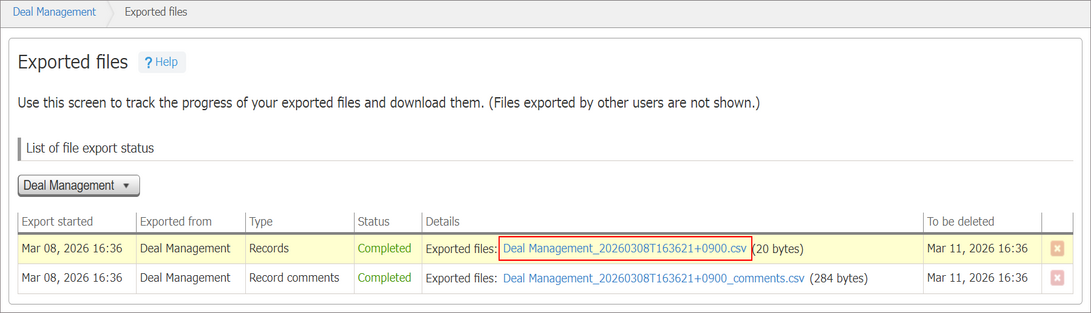
The name of the exported file is displayed. You can click the file name to download the file.- The file name of exported records and aggregated data consists of the app name followed by a timestamp (Example: Deal Management_20260308T163621+0900.csv).
- The file name of exported record comments consists of the app name followed by a timestamp and "_comments" (Example: Deal Management_20260308T163621+0900_comments.csv).
- The file name of exported pivot tables consists of the app name followed by a timestamp (Example: Deal Management_20260308T163621+0900.xlsx).
-
When the status is Error:
An error message is displayed.
To be deleted
Displays the date and time when the row will be deleted for exports that have the Completed or Error status.
Once the row is deleted, the exported file becomes unavailable for download.
Exported files are available for download for three days from the time when their export was initiated.
Cancel
"Cancel" appears when the export status for records or record comments is Waiting or Processing. You can click Cancel to cancel the export process.
However, depending on when you click Cancel, the export to the file may have already been completed, and cancellation may no longer be possible.
Canceling the data export process
"Delete" icon
Lets you delete an export status row.
To delete a row, click the Delete icon and select Delete.
Downloading exported files
To download an exported CSV file, click its file name.