Using AI View Analysis in the mobile app for Android
This section describes how to use the AI View Analysis feature in the Android mobile app.
Settings for using AI View Analysis in the mobile app
To use the AI View Analysis feature in the Android mobile app, you must make the following preparations in the desktop view.
- A Kintone administrator must have enabled Kintone AI and selected to use the AI View Analysis feature.
For details on how to configure these settings, refer to the following page.
Enabling Kintone AI and selecting features to use - A Kintone administrator must configure which apps and users can use the AI View Analysis feature.
For details on the configuration steps, refer to the following page.
Setting which apps and users can use AI View Analysis
Limitations and analysis targets
The limitations and analysis targets for using the AI View Analysis feature in the Android mobile app are the same as those for the desktop view.
For details, refer to the following page.
Using AI View Analysis
Steps
This section describes the basic steps to use the AI View Analysis feature in the Android mobile app.
-
Open the mobile app for Android.
-
Open an app that can use AI View Analysis.
-
Tap the view drop-down list, and then tap the view you want.
-
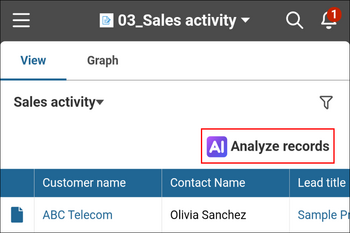
Tap Analyze records.
-
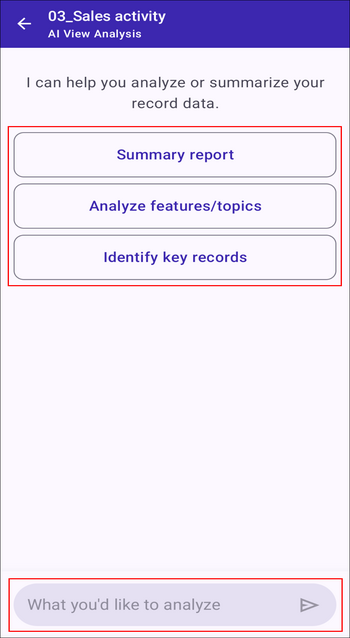
On the chatbot screen, tap a prepared prompt button, or enter a question or instruction and tap Send.
You can enter up to 1,000 characters for a question or instruction.
-
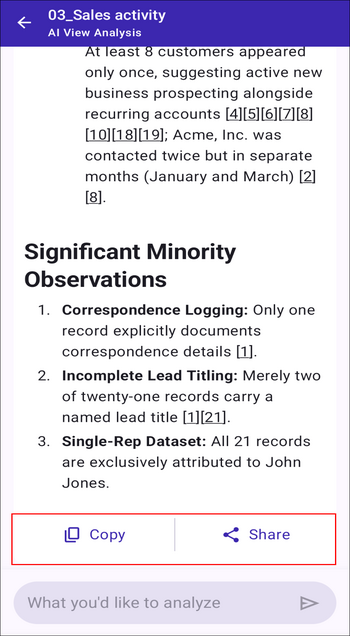
Check the analysis results.
- You can tap Copy to copy the answer from the AI View Analysis feature.
- Tapping Share displays a menu at the bottom of the screen where you can select the destination app. You can share the answer from the AI View Analysis feature with other apps installed on your device, such as email apps.
-
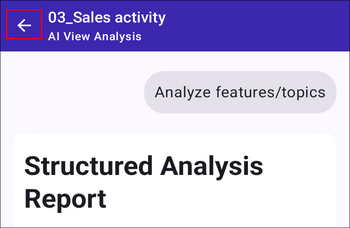
Tapping Back opens the View screen and closes the AI View Analysis screen.