Saving column widths of the view in app settings
You can adjust the width of a column that displays field data on the View screen by dragging the right border of the column.
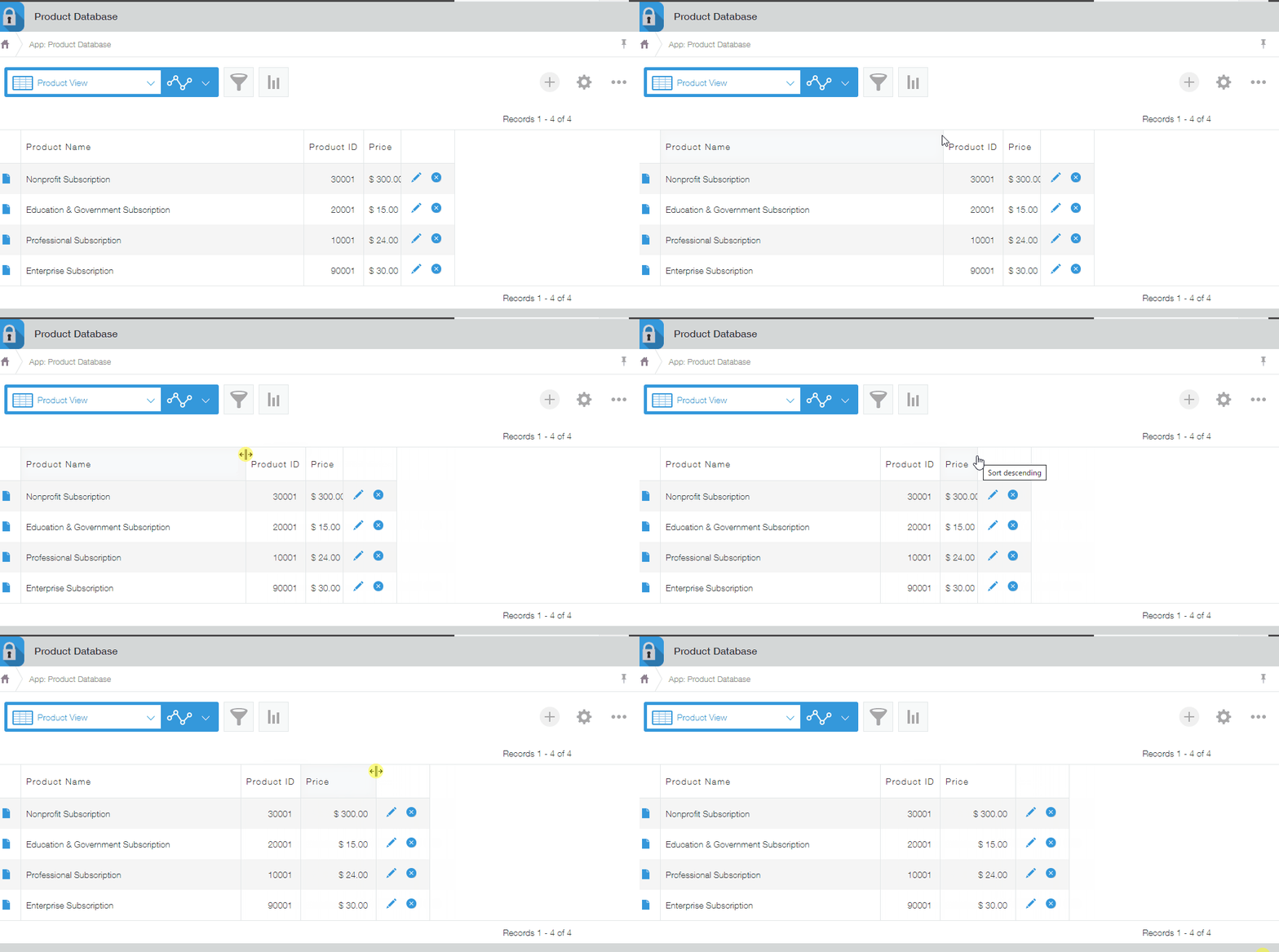 You can save the adjusted column widths in the app settings.
When you adjust and save the column widths for a view, the adjusted column widths will also be applied when other users use the view.
If users have individually adjusted the column widths, the column widths set by individual users take precedence.
Procedure for individual users to adjust column widths in a view
Steps
See below for the steps to adjust a view's column widths and save them in the app settings.
-
Open the View screen.
-
On the View screen, drag the right border of the field columns that you want to adjust.
-
Click the App settings menu icon (the down arrow icon), then select Save current column widths.

-
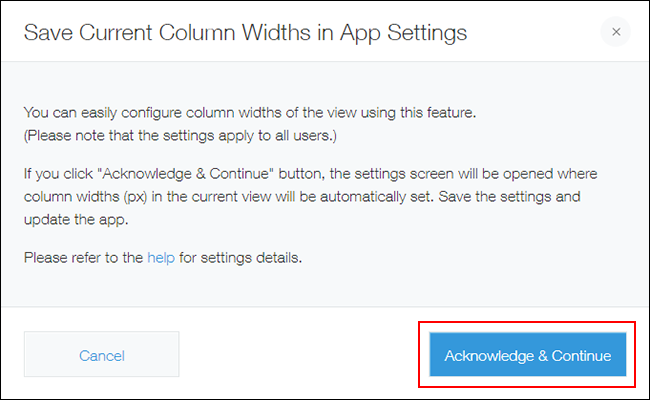
When the Save current column widths in app settings dialog appears, click Acknowledge & continue.
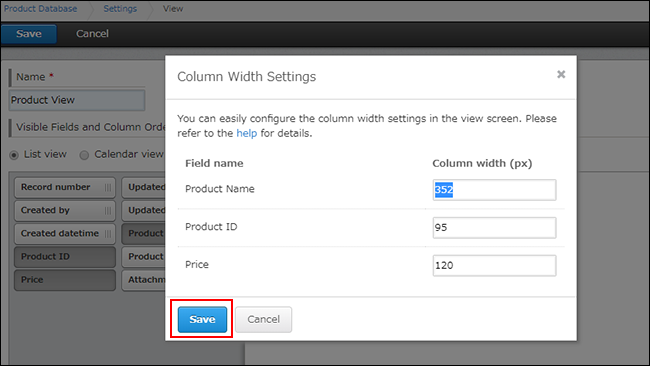
After doing so, the View screen in App settings will open and the Column width settings dialog will appear. The column widths of fields displayed in the view are automatically entered in the Column width (px) input fields.
-
On the Column width settings dialog, click Save.
-
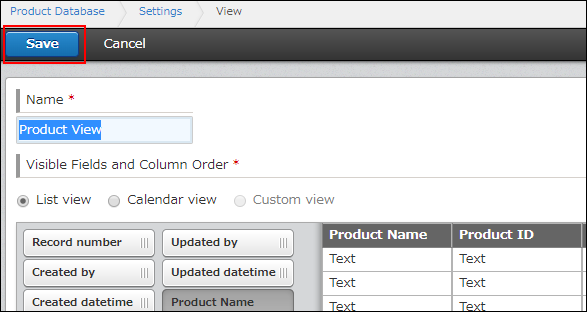
Click Save at the upper left of the View screen.
-
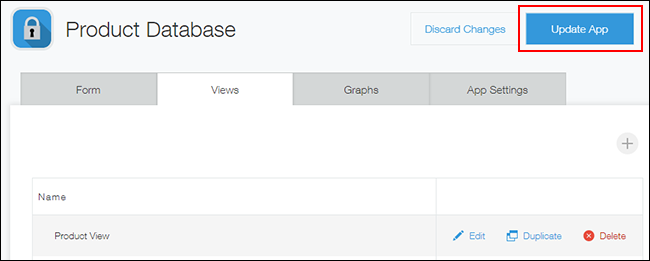
On the App settings screen, click Update app.
-
On the Update app dialog, click Update app.
Even after the adjusted column widths for a view are saved in the app settings, individual users can adjust the column widths to their preference. The column widths adjusted by individual users are preserved based on the combination of a login user and Web browser.
Procedure for individual users to adjust column widths in a view
If a user clicks Reset column widths after adjusting the column widths to their preference, the column widths will be changed back to those saved in the app settings.
Adjusting column widths on the view setting screen
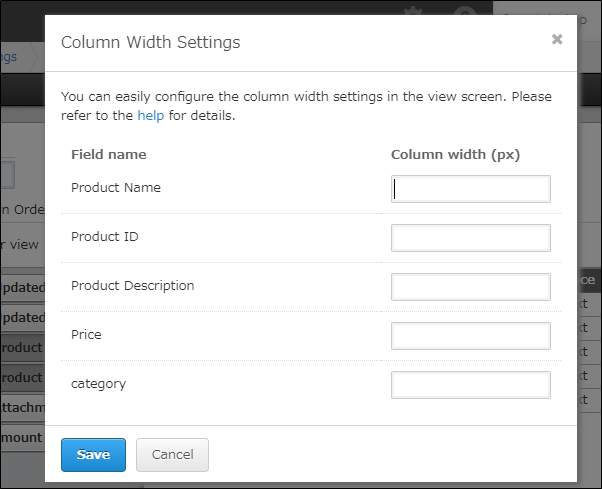
It is also possible to check and adjust column widths of fields on the view settings screen.
-
Click the App settings icon (the gear-shaped icon) at the upper right of the View screen.

-
On the App settings screen, click the Views tab.
-
Click Edit to the right of the view for which you want to change the column widths.
-
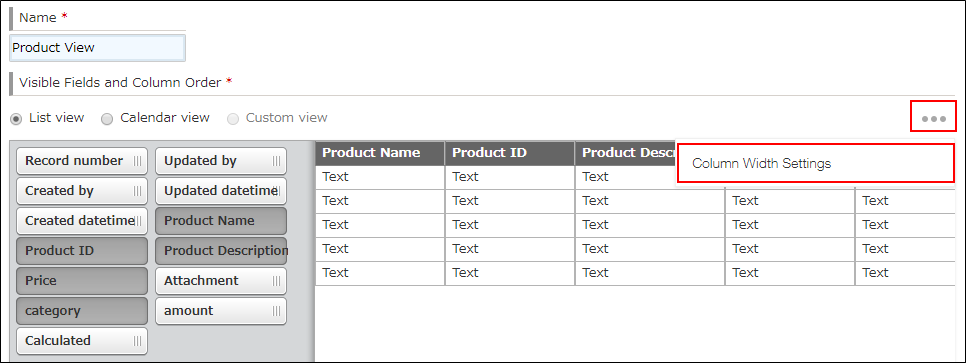
Click the Options icon to the right of the Visible fields and column order section, then select Column width settings.
-
Change the values under Column width (px).
Clearing the column width settings and restoring them to their original state
If the column widths for a view have never been saved in the app settings, no values are specified under Column width (px).
Also, if you clear all of the values entered in the Column width (px) input fields and save the settings, the column width settings will be cleared. You will then see the column widths automatically adjusted by your web browser.