
Managing spaces
On the "Space Management" screen in Kintone Administration, System Administrators can check the usage of licenses for spaces and the list of all the spaces created in their environment.
This is useful for understanding the current usage of the spaces and organizing them as necessary.
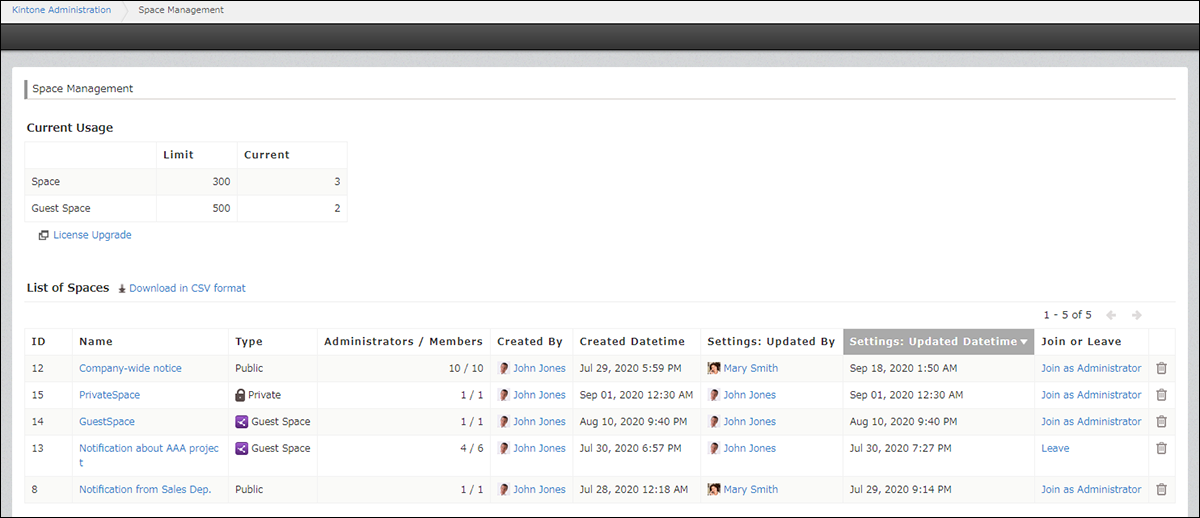
In the List of Spaces section, you can find information on each space, including the number of administrators and members, the user who last updated the settings, and the date and time of the last settings update.
You can also join, leave, or delete spaces as needed.
Checking the List of Spaces
Deleting Spaces on the "Space Management" Screen
Opening the "Space Management" screen
-
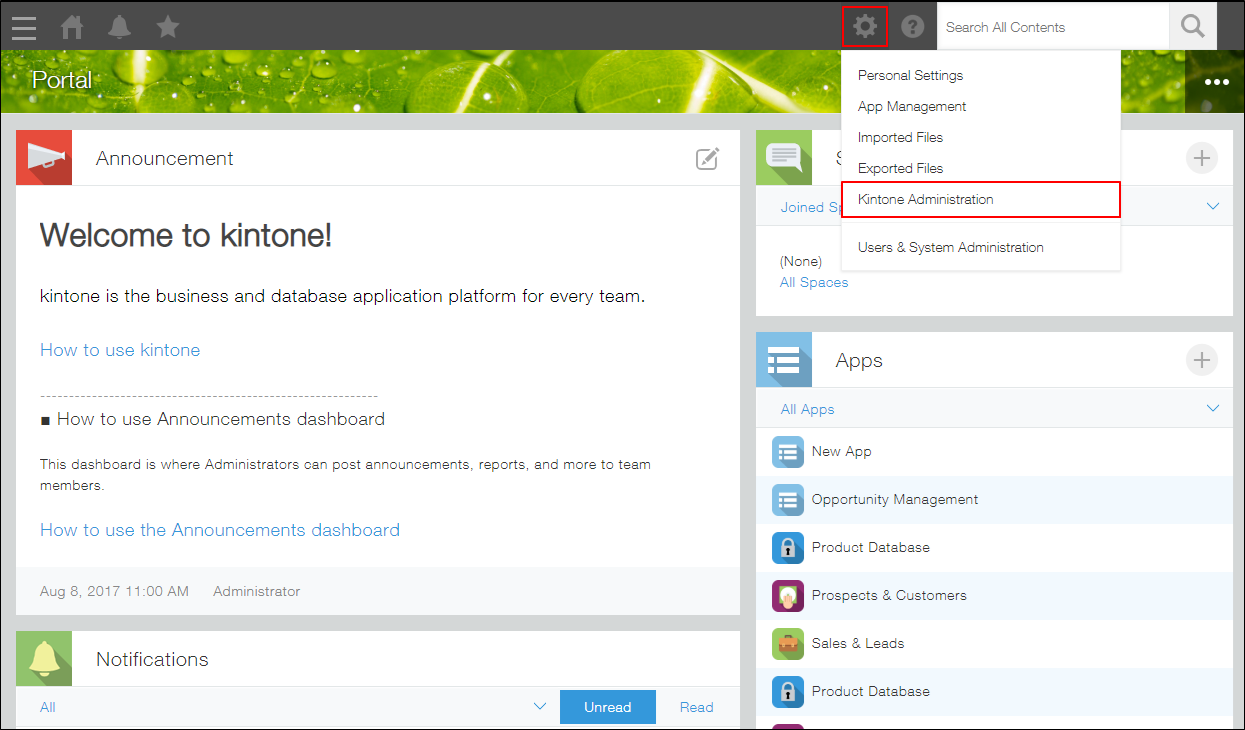
Click the Settings icon (the gear-shaped icon) at the top of Kintone, then click Kintone administration.
-
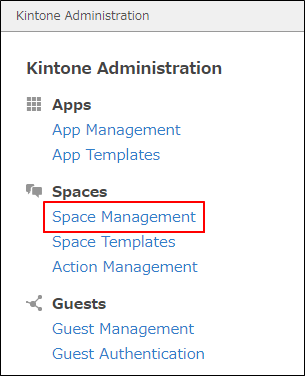
Click Space management.
Checking your space license usage
In the "Current Usage" section of the "Space Management" screen, you can check the limits and license usage in your environment.
The limit value varies depending on your license plan.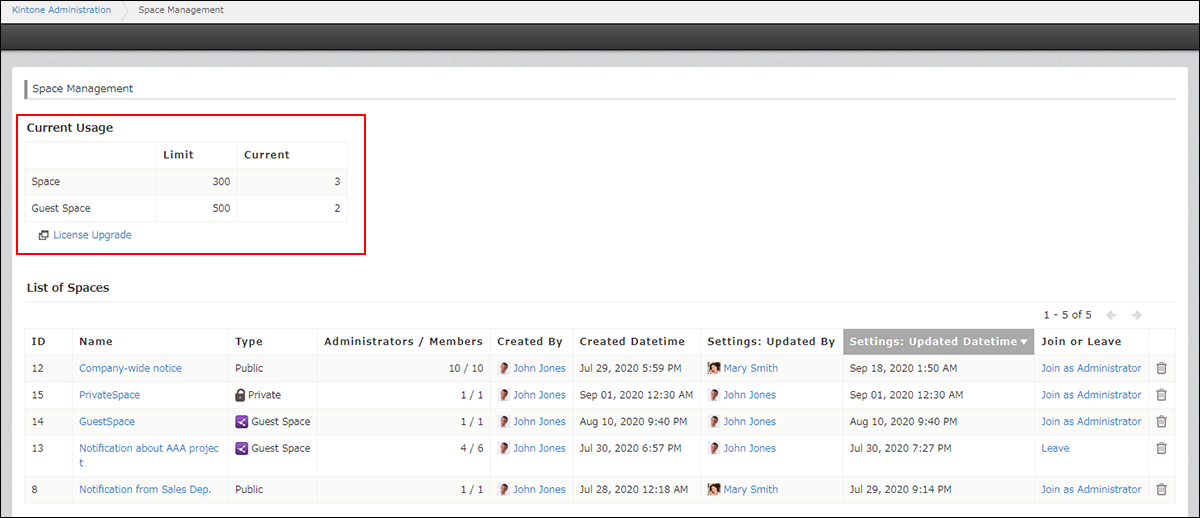
Checking the list of spaces
All existing spaces are displayed in the "List of Spaces" section regardless of their types.
However, you cannot access private spaces and guest spaces to which you have not joined.
In the "List of Spaces" section, you can find the information on each space, including the number of members and the date and time of the last setting update. You can also join/leave/delete spaces as necessary.
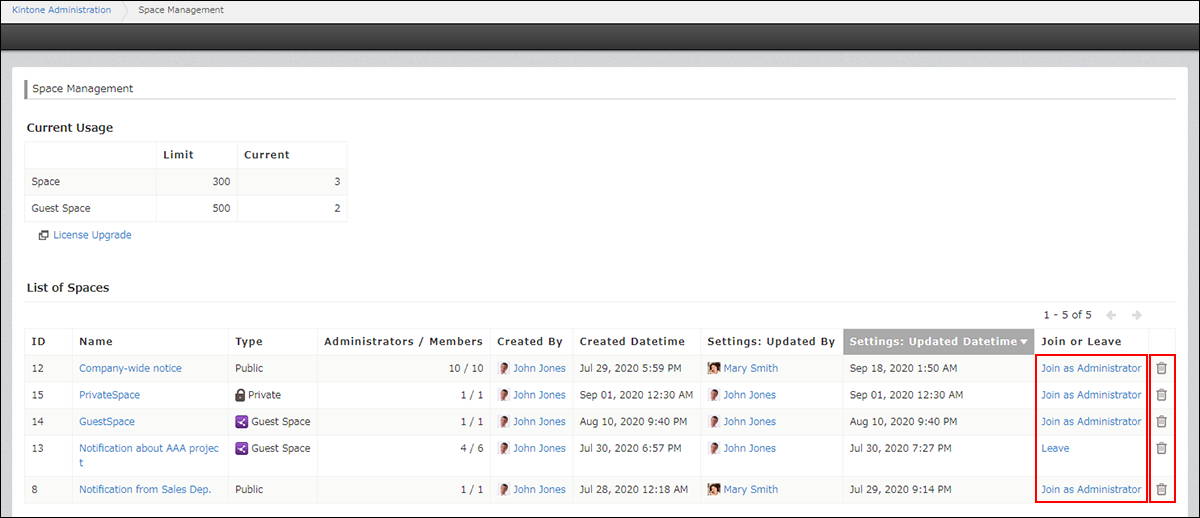
- To join a space:
Click Join as Administrator for a space to which you have not joined.
When a system administrator joins a space, that administrator is automatically set as the administrator of that space. - To leave a space:
Click Leave for the space you have already joined. - To delete a space:
Click the Delete icon at the right of the space that you want to delete.
For details, refer to the following page:
Deleting Spaces on the "Space Management" Screen
You can click the name of the following columns to sort apps in ascending or descending order.
- ID
- Space name
- Type
- Members/Administrators
- Created by
- Created datetime
- Settings: Updated by
- Settings: Updated datetime
Downloading a list of spaces in CSV format
Kintone users & system Administrators can download a list of spaces in CSV format (UTF-8 with BOM).
You can use downloaded CSV files together with other data, or manage downloaded CSV files using Excel, for various actions including checking, managing, and cleaning up spaces.
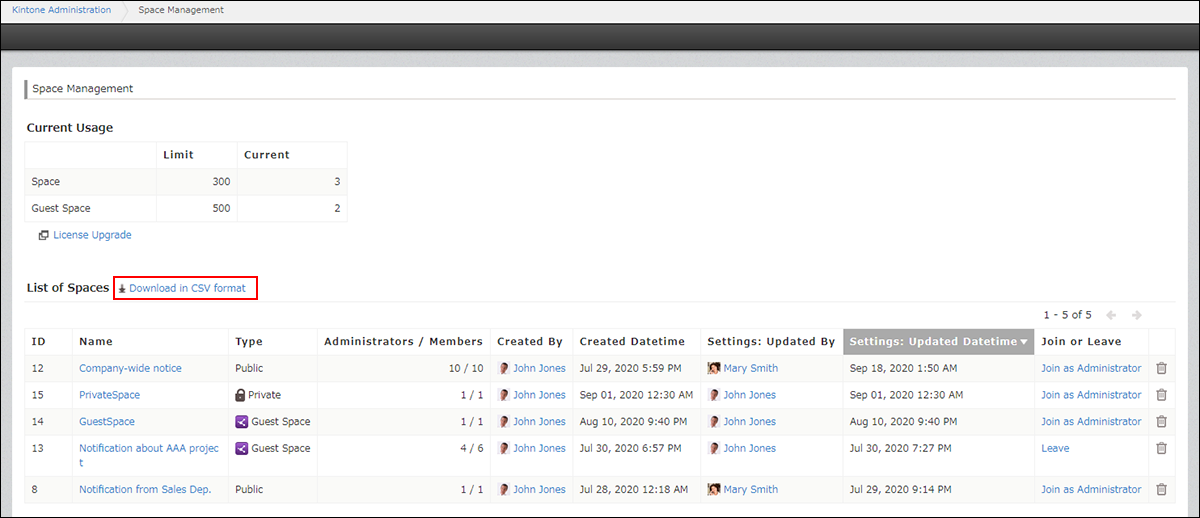
Clicking Download in CSV format downloads a list of spaces sorted by space ID in ascending order.
Following fields will be downloaded.
- ID
- Space name
- Space URL
- Type
- # of administrators
- # of members
- Created by (Display Name)
- Created by (Login Name)
- Created datetime
- Settings: Updated by (Display Name)
- Settings: Updated by (Login Name)
- Settings: Updated datetime