Overview of process management
When you set up process management for an app, you set statuses, assignees, and actions to define each step of your workflow.
This page provides an overview of how process management can be used when it's enabled.
For information on the terms used in process management, refer to the following page.
Overview of statuses, actions, and assignees
Use statuses to show the different stages of your workflow
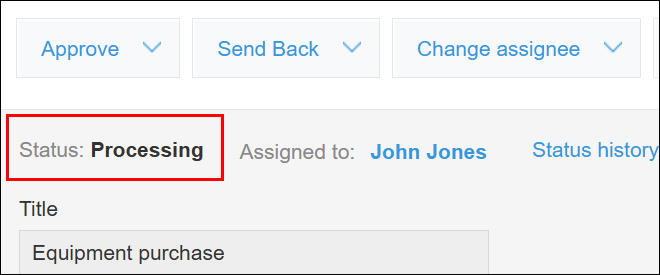
When process management is enabled, a status is displayed on each record.
Use actions to change the status of records
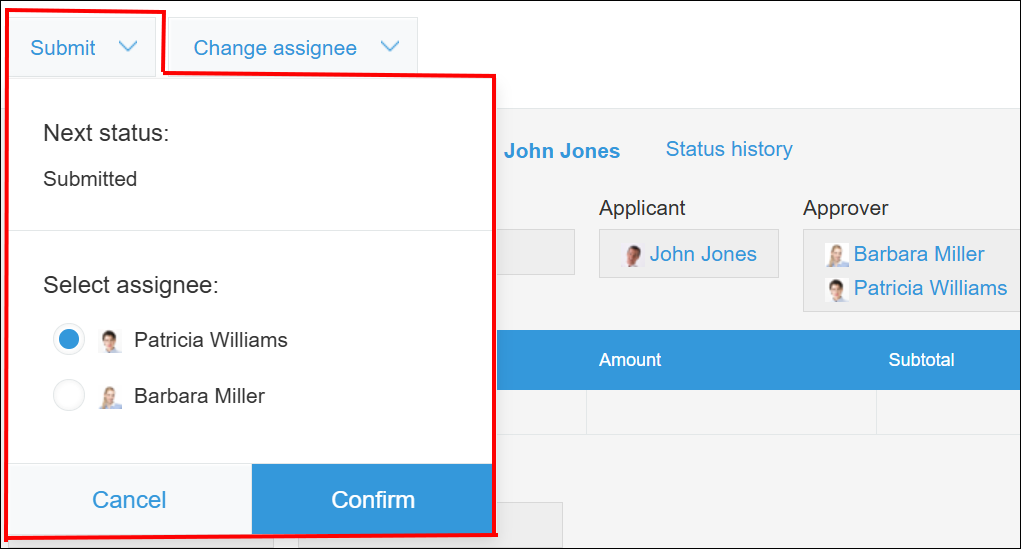
When an action is performed on a record, it moves to the next status.
The action button appears on the records that are assigned to you.
When you click the button, you can check the next status and assignee. Clicking Confirm changes the status of the record.
Check which records are assigned to you and receive notifications
Each status can be set with one or more assignees who need to edit or confirm a record and change it to the next status.
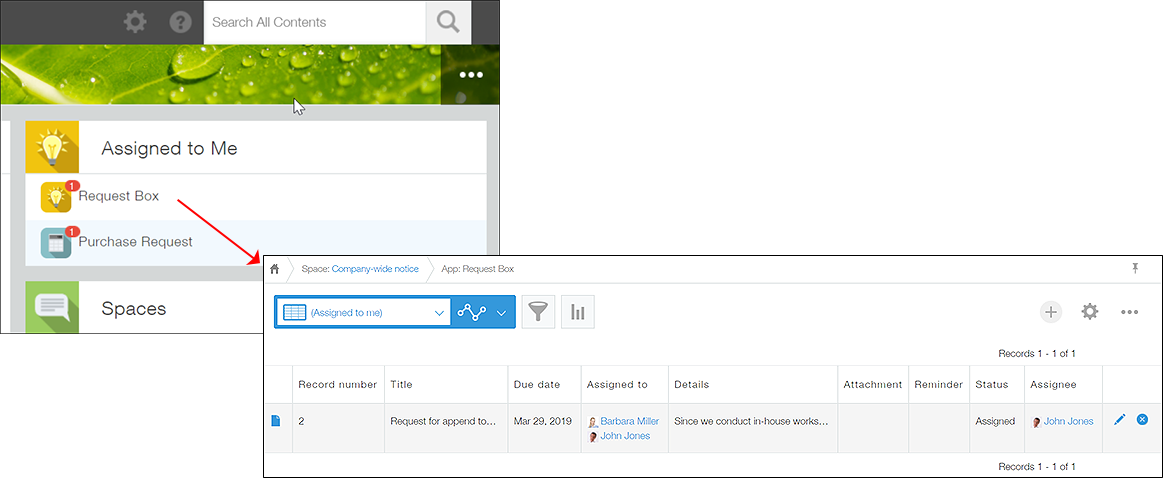
Checking the number of records assigned to you
The number of records assigned to you is displayed for each app in the Assigned to me section on your portal (the home page of Kintone).
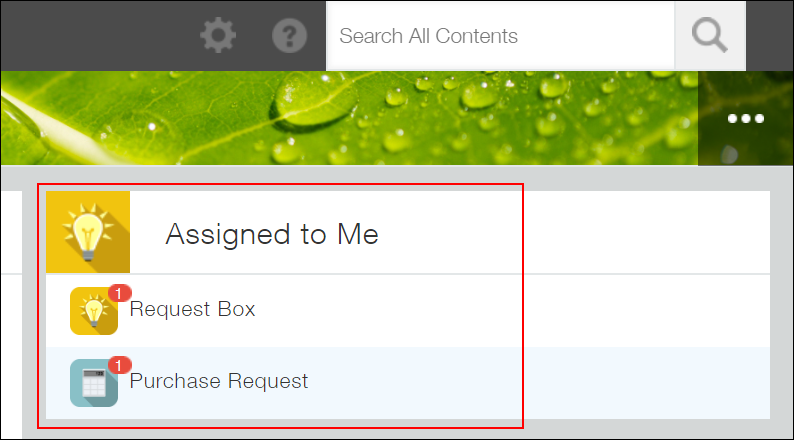
When you click an app, the records assigned to you will be displayed.
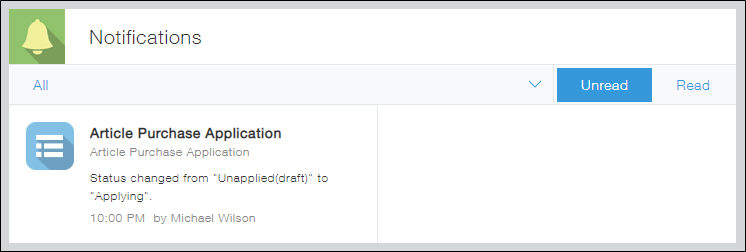
Notifications for records assigned to you
Whenever you are the current assignee of a record, you will receive a "To me" notification.
Clicking the notification will open the record you've been assigned.