
Using the desktop view on mobile devices
When using a mobile web browser, you see the mobile-optimized version of Kintone.
However, some features are restricted, such as app and space settings.
For details on the restricted features, refer to the following page.
Actions you cannot perform in the mobile view
If you want to use Kintone on your mobile device as you do on a desktop, you can switch to the desktop view.
Three ways to use Kintone on mobile devices
You can use Kintone on mobile devices in the following three ways:
- Use the mobile-optimized view on a web browser.
- Use the desktop view on a web browser.
- Use the mobile app.
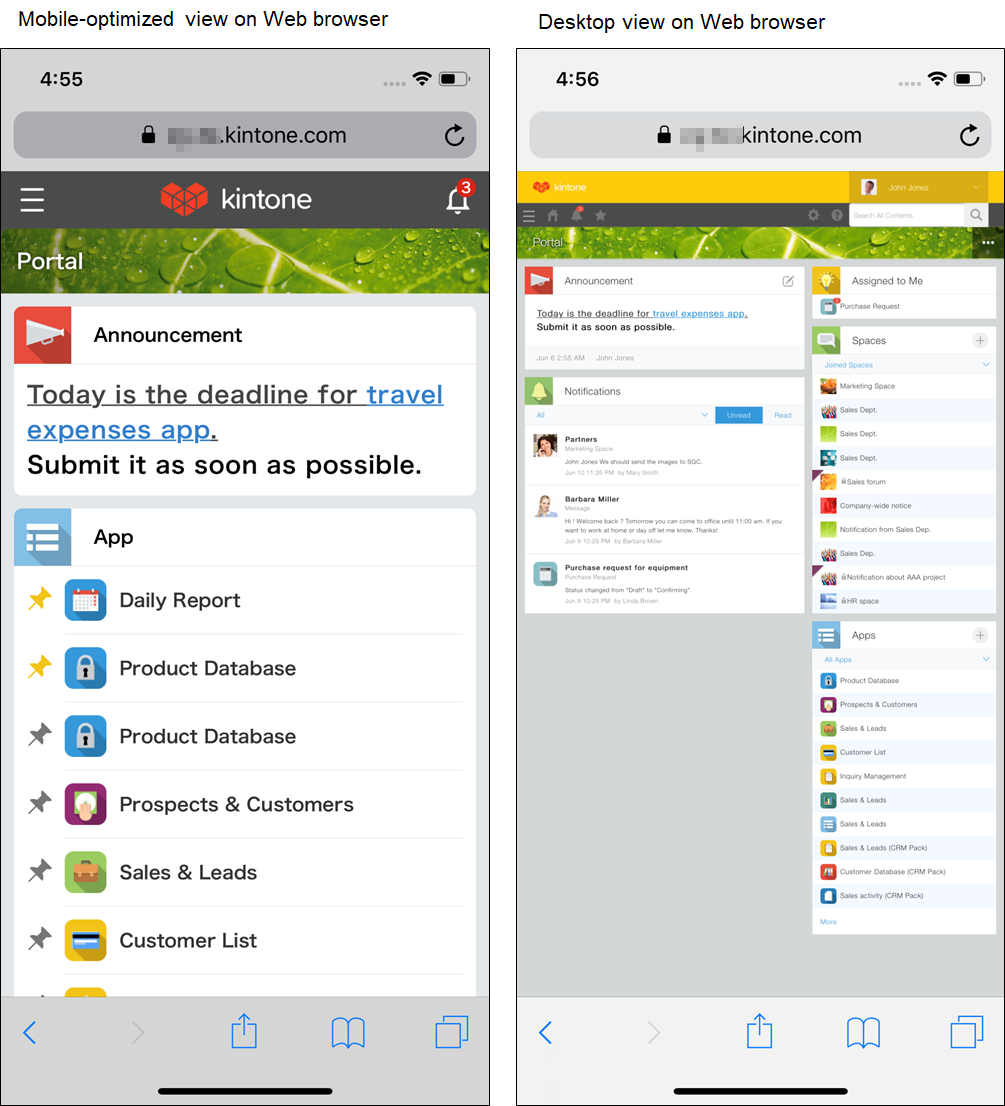
The differences between how the mobile-optimized view and desktop view of Kintone are displayed on the web browser of a mobile device are as follows.
The mobile-optimized view is displayed by default.
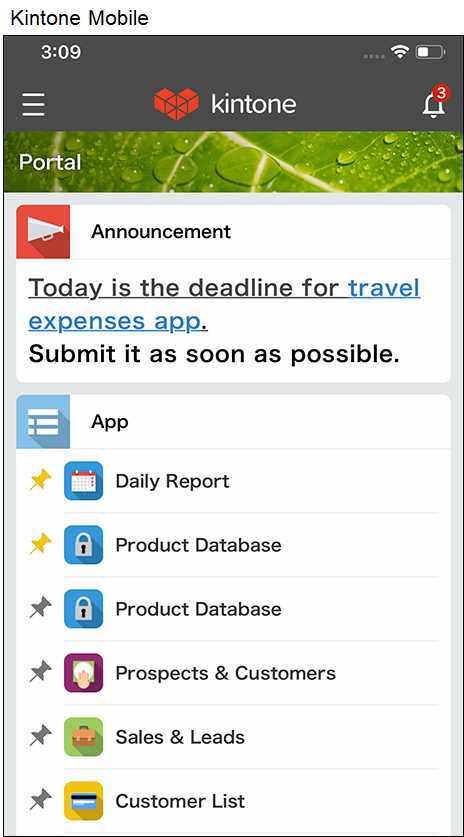
The mobile app always displays the mobile-optimized view.
Switching to the desktop view
You can switch the view used on mobile devices for each user.
-
Access Kintone from a web browser on your mobile device.
-
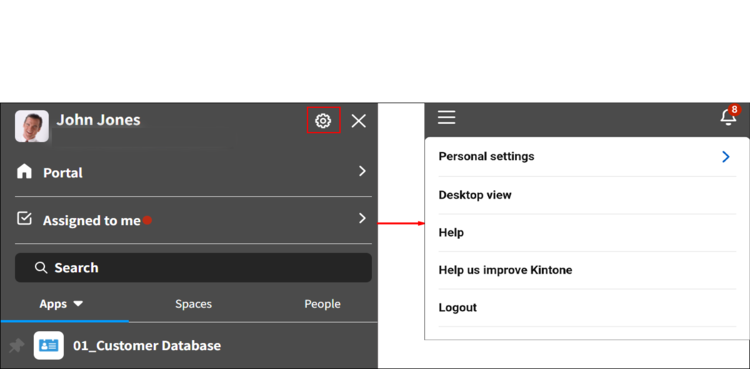
Tap the Open navigation menu button at the top left of the Portal screen.
-
In the Navigation menu, tap the Open settings screen icon (the gear icon) at the top right of the screen, and then tap Desktop view.
For Kintone administrators: Switching to the desktop view for all users
A Kintone administrator can also configure the settings to display the desktop view to all users.
-
Click the Settings button (the gear icon) at the top of the Kintone screen, and then click Kintone administration.

-
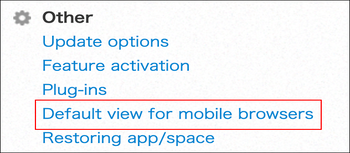
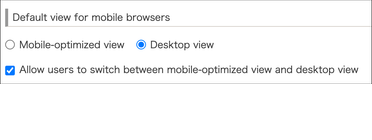
On the Kintone administration screen, click Default view for mobile browsers under Other.
-
On the Default view for mobile browsers screen, select Desktop view.
To force the desktop view on all users, clear Allow users to switch between mobile-optimized view and desktop view.
Switching back to the mobile-optimized view
You can switch back to the mobile-optimized view from the desktop view by following the steps below.
-
Access Kintone from a web browser on your mobile device.
-
Tap the Settings button (the gear icon) at the top of the Kintone screen and select Mobile-optimized view.
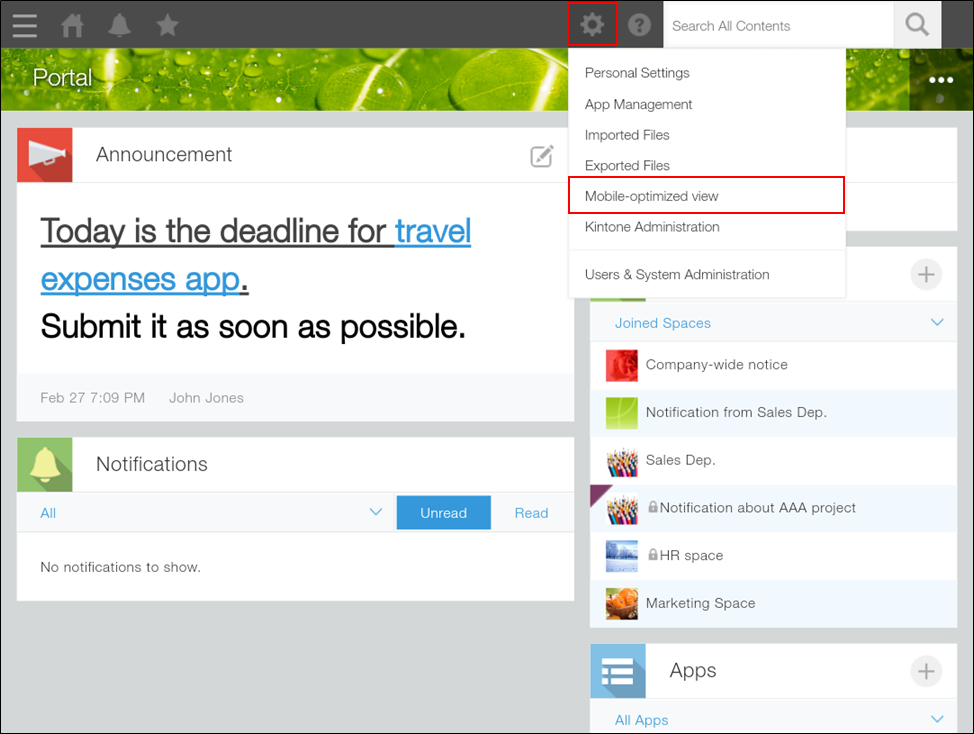
If you want to switch all users' views back to the mobile view, a Kintone administrator must select Mobile-optimized view on the Default view for mobile browsers screen in Kintone administration screen.