
Creating an action to duplicate a record in the same app
By specifying the same field in the same app as the copy target in the settings of an app action, you can create an action button that duplicates records.
Unlike the Duplicate Record feature, the Action feature allows you to select fields to copy.
-
Click the App settings icon (the gear-shaped icon) at the upper right of the View screen.

-
On the App settings screen, select the App settings tab, then click Actions under Advanced settings.
-
On the Actions screen, click Create action.
-
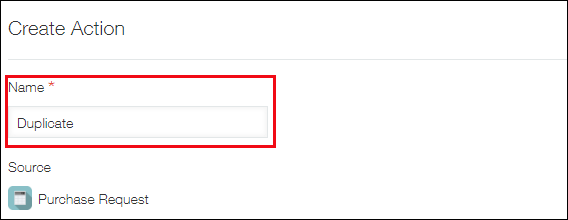
In the Name section of the Create action screen, enter the name that you want to be displayed for the action button on the Record details screen.
In this example, we will enter "Duplicate" as the name.
-
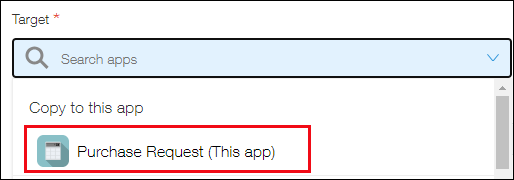
In the Target section, select the app you want to copy data to.
In this example, we will select the same app ("This app") as the source app.
-
For Field mappings, specify the source field and the destination field for copying data.
When you select a source field, the same field is automatically selected for the destination field.
You can also change the destination field, if necessary. If the specified source field cannot be specified as a destination field, you need to specify the destination field manually, as it will not be selected automatically.
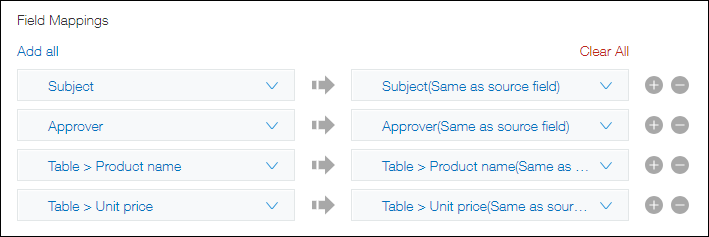
- If you click Add all, all the remaining and configurable fields are bulk added under the fields that have been already mapped.
If you have a large number of fields to map, it is effective to add all the fields in bulk by using Add all first, and then delete the fields that you do not want to use for duplicating data. - You can also click Clear all to delete all of the mappings you have already configured.
- If you click Add all, all the remaining and configurable fields are bulk added under the fields that have been already mapped.
-
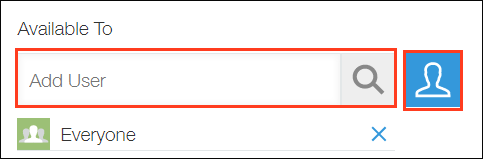
Configuring the Available to setting lets you limit the users for whom the created action button will be displayed.
- To display the action button to all users, keep Everyone selected.
- To display the action button to specific users, remove the preselected Everyone option, and add users, departments, or groups who should have access to the action.
-
In the Available when section, specify the conditions for displaying the action button.
Field values, process management status, or assignees can be specified for the conditions.
To display the action button for all records, keep All records selected.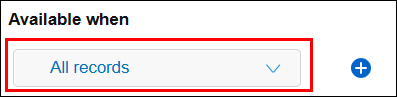 To specify multiple conditions, click the Add a condition icon (the plus sign-shaped icon). Add conditions as necessary, and select either All conditions are met or Any conditions are met.
 -
Click Save at the bottom right of the screen.
-
Click App settings in the message displayed at the top of the screen, or click Back to app settings at the bottom left of the screen.
-
Click Update app at the upper right of the screen.
-
On the Update app dialog, click Update app.
The "Duplicate" action button that you have created will be displayed on Record details screens.
If process management settings are configured, the action button is displayed next to the process management action button.
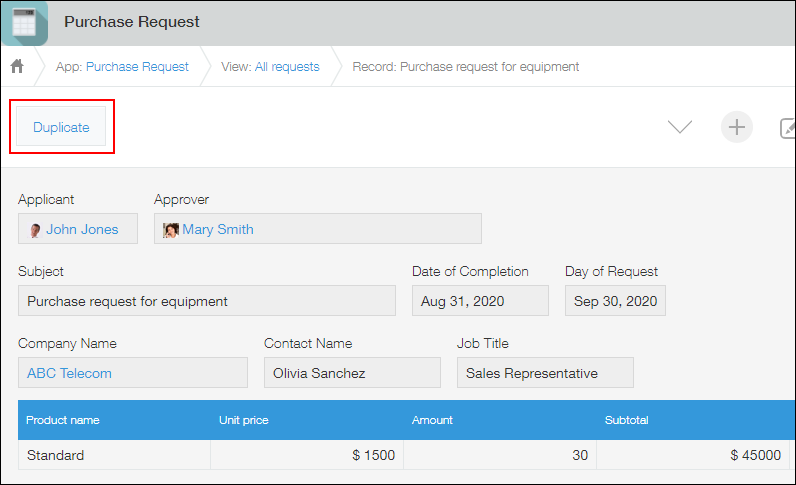
Clicking the "Duplicate" action button will open a record with data copied from the specified fields.
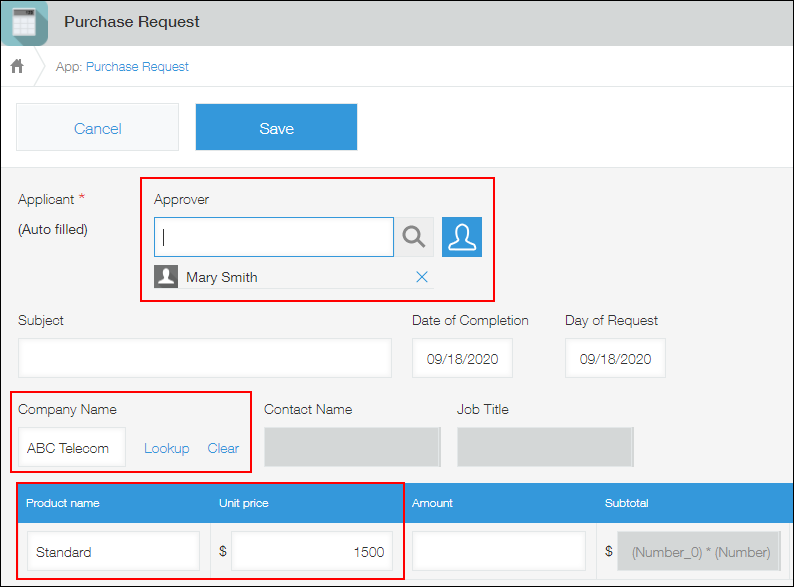
If the data of a lookup field is copied, you need to click Lookup to retrieve the data again.