
Viewing change history of app settings
This feature records changes made to app settings as a simple change history.
You can check when changes were made, who made them, and a summary of the operations. This can be useful for troubleshooting issues or reviewing specific setting changes.
Notes
- The change history of app settings can display up to 1,000 records. If there are 1,001 or more records, the oldest ones will be deleted.
- Deleting an app also deletes its change history of app settings.
However, if the app is restored within 14 days, the change history of app settings will also be restored. - For apps that were activated before this feature was released, the change history of app settings will be recorded starting from the release.
- If you temporarily disable this feature in the update options, setting changes made during that period will not be recorded. Once re-enabled, the previously recorded change history will be displayed.
Users who can view the change history of app settings
Only users with management permission for an app can view the change history of its settings.
A user has management permission if they meet all of the following conditions.
- The Allow checkbox for Manage apps has been selected for them on the Permission management screen in Kintone administration.
- The Manage app checkbox has been selected for them on the Permissions for app screen of the relevant app.
Steps
-
Click the App settings icon (the gear-shaped icon) at the upper right of the View screen.

-
On the App Settings screen, click App settings history in Management on the App settings tab.
If the app is not yet activated, App settings history will be grayed out and unavailable. -
On the App settings history screen, you can check when, by whom, and how the app's settings were changed.
Items displayed on the "App settings history" screen
The following items are displayed on the App settings history screen:
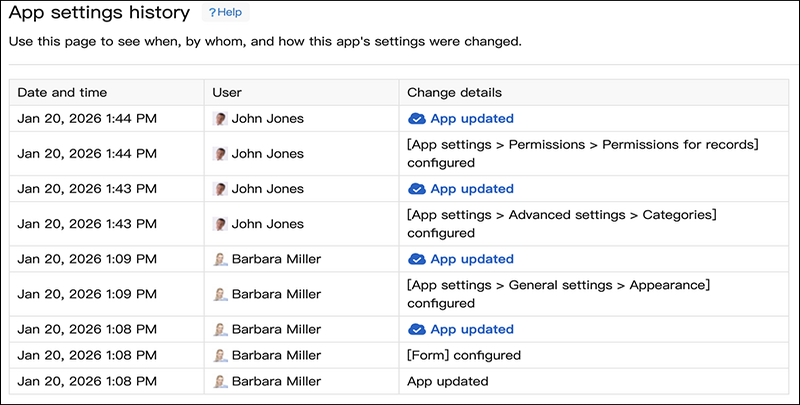
Date and time
Shows the date and time a change was made to the app's settings, as recorded in Change details.
The date and time shown are based on the current user's time zone and time format settings.
User
Shows the users who made changes to the app settings, as recorded in Change details.
Users that you don't have permission to view due to the department access control settings will appear as User (not visible).
Change details
Shows the changes made to the app's settings.
Important actions other than app setting changes
In addition to changes to the app's settings, the following important actions are also recorded in the change history.
- An app was activated
- An app was updated
- Changes to an app were canceled
Actions related to app setting changes
Changes made to app settings on the App settings screen are recorded.
You can review this to see which settings were changed.
Example:
- Action taken: Changed and saved the recipients in the Per record notifications settings.
- Information recorded in the Change details section: "Settings > Notifications > Per record notifications" settings
Actions not recorded in the change history
The following actions are not recorded in the change history of app settings.
- An app was downloaded as an app template.
- An app was moved to a different space or outside of a space.
- App maintenance mode settings were saved
- An app was deleted
- An app was restored