
Checking notifications
You receive notifications when changes are made in Kintone apps, spaces, and so on.
Notifications can be viewed for 70 days. You will not be able to view them after 70 days from the date they are received. However, flagged notifications can be viewed until they are unflagged, even after 70 days have passed since they were received.
How to check notifications
You can check Kintone notifications in the following ways:
- On Portal
- On the "Notifications" screen
- By email
- From desktop Notifications
- From push notifications received in the mobile app
On Portal
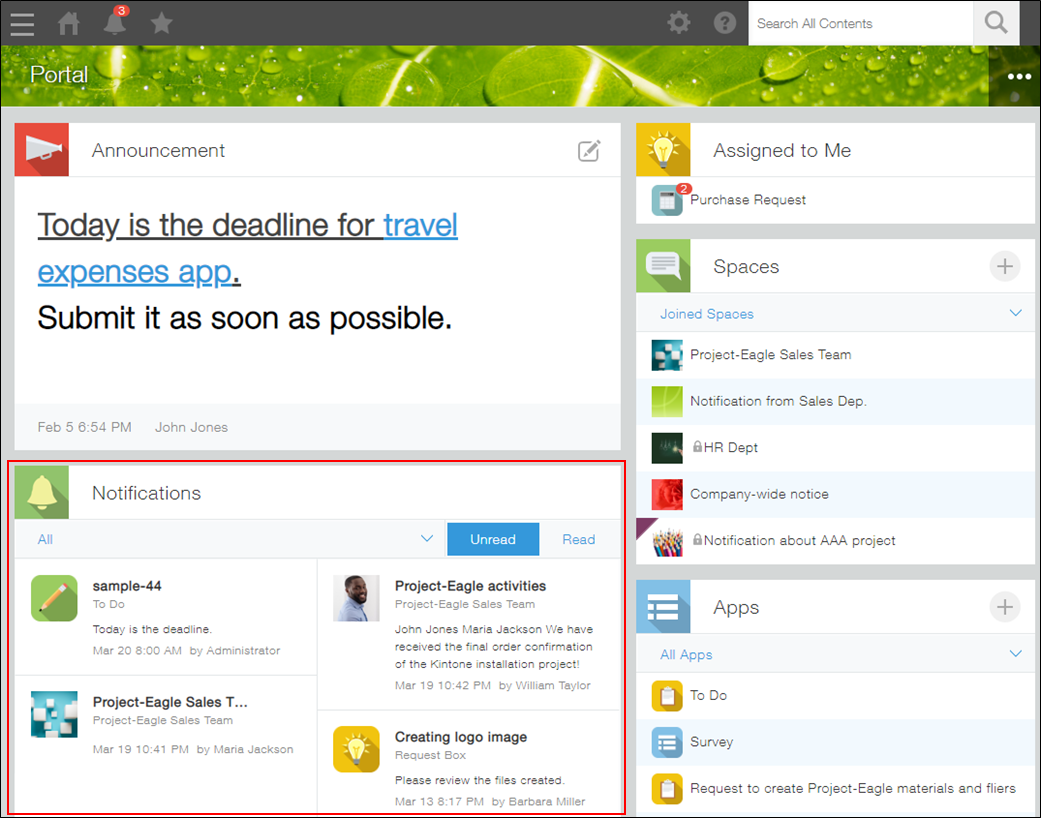
You can check notifications on Portal (the main page of Kintone).
On the "Notifications" screen
Clicking the Notifications icon (the bell-shaped icon) at the top of Kintone displays a list of notifications.
When you receive "To me" notifications, a badge that indicates the number of notifications appears on the Notifications icon.
Differences between "To me" and "All" notifications
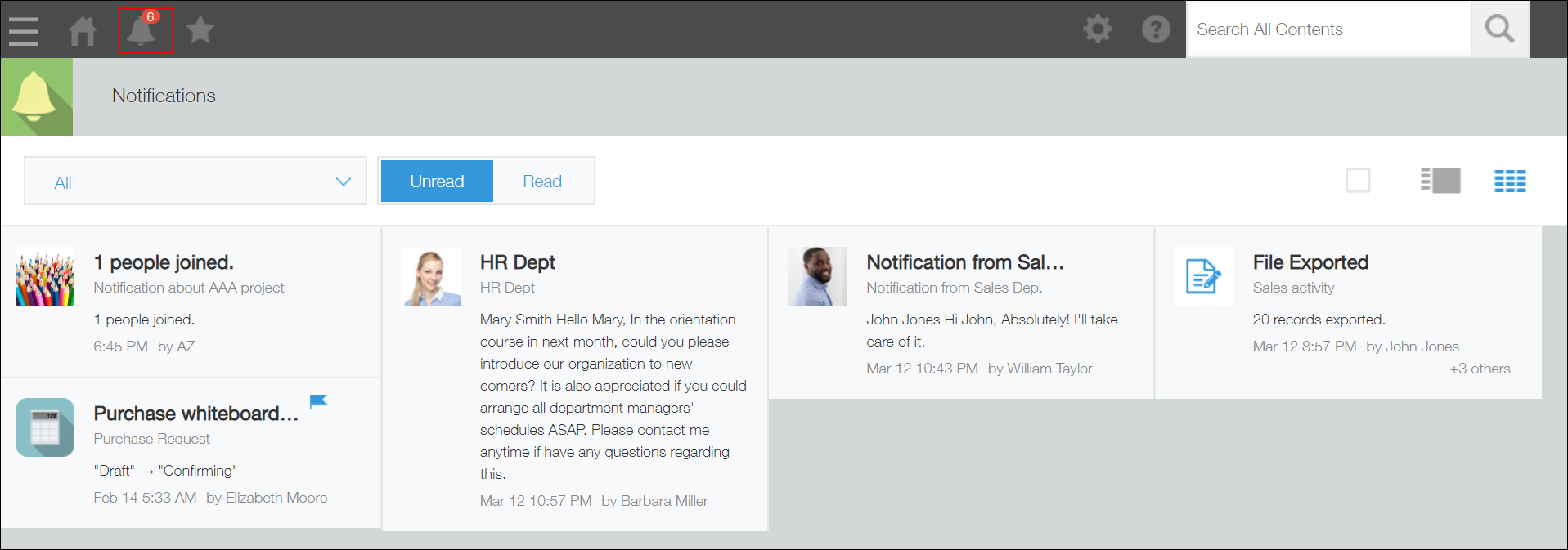
Also, the Notifications icon displays the number of unread "To me" notifications up to 99. When you have more than 100 unread "To me" notifications, the badge displays "99+".
For details on the order in which notifications are displayed, refer to the following page.
In what order are notifications displayed in the notifications section?
By email
Notifications related to apps, spaces, people, and messages can be received via email.
To receive notifications via email, the Activate email notifications checkbox must be selected in the Email notifications section on the Feature activation screen of Kintone administration. By default, the checkbox is selected.
For details, refer to the following page:
Setting email notifications
From desktop Notifications
You can have desktop notifications displayed when you receive "To me" notifications.
For details, refer to the following page.
Setting up desktop notifications
From push notifications received in the mobile app
Using the mobile app, you can receive push notifications.
You can check the details of notifications by tapping push notifications received on your iPhone or Android device.
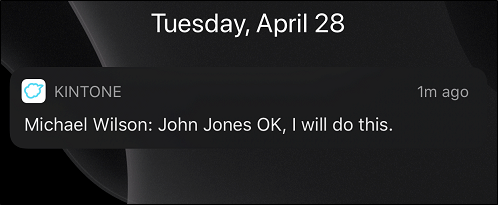
If you do not receive any push notification, check the notification settings on your iPhone or Android device.
-
Notification settings on iPhone
Open Settings, "Kintone," and then Notifications. Then, make changes as necessary. -
Notification settings on Android
Open Settings, Apps & notifications, and then "Kintone." Then, make changes as necessary.
The procedure to change notification settings may be different depending on the OS versions.
For details on notifications on mobile devices, refer to the following page: to
Understanding notifications on mobile devices
Filtering notifications
On Portal and the "Notifications" screen, you can apply a filter to narrow down the notifications that are displayed.
To filter notifications, select a filter from the drop-down list.
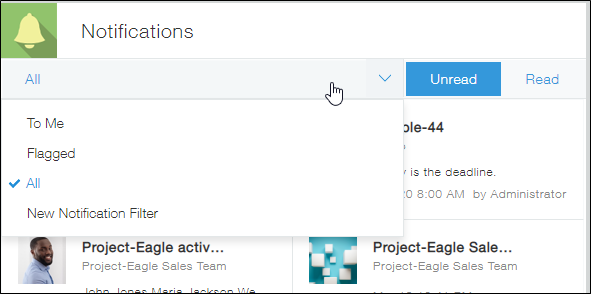
You can add a new filter of your own by following the steps below.
-
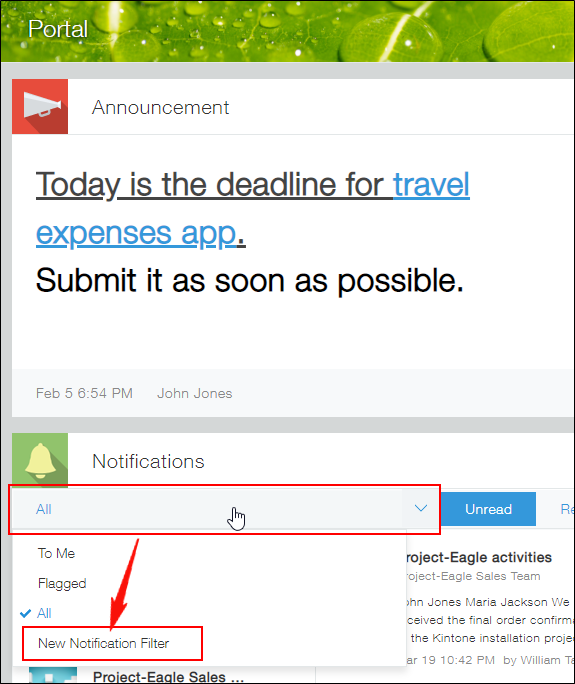
On Portal, click the drop-down list in the Notifications section and then click New notification filter.
-
Specify each item in the Notification filter settings dialog.
- Name
Enter the filter name. - Notification type
If you want to display only "To me" notifications, select To me. - Locations
If you want to filter notifications by location, such as apps and spaces, select either Includes any of or Does not include and specify the location. - Sent from
If you want to display only the notifications of actions by a specific user, specify the user here.
- Name
-
Click Save.
Flagging notifications
You can flag a notification by clicking the Flag icon in its upper right corner.
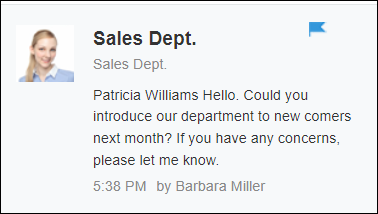
Flagged notifications can be viewed until they are unflagged, even after the period for displaying notifications has been exceeded (70 days). You can check your flagged notifications by selecting the Flagged filter on Portal or the "Notifications" screen.
Grouped notifications
Some notifications are grouped together according to a certain criteria. Grouped notifications are displayed with "+N others". Note that the contents of the grouped notifications included in "+N others" cannot be displayed.

Notifications are grouped according to the following criteria.
| Feature | Notifications that are grouped together | Grouped by |
|---|---|---|
| Space | A space is added, the body text of space is edited, settings are changed, guest space members are changed | Space |
| Thread | A thread is added, the body text of a thread is edited | Thread |
| Thread | A comment is posted, there is a reply to a post, Like is clicked for a post or reply | Post |
| People | There is a post, there is a reply to a post, Like is clicked for a post or reply | Post |
| Messages | There is a post, Like is clicked for a post | User who you are exchanging messages with |
| Apps | A record is added, the same record is edited, the status is updated, a comment is posted | Record |
| Apps | A record is imported, a record is exported, records are bulk deleted, notifications related to periodic reports, an aggregate result or pivot table is exported | App or the type of actions |