Setting assignees
An assignee is a user designated to perform the task associated with a given status.
Set an assignee when you want a certain user to complete a status's task.
The assignee's task is considered complete when the status has been changed.
When an assignee is set for an action, the button to perform it is displayed only on the assignee's Record details screen. The button will not be displayed for users who are not assignees.
If no assignee is set for an action, the button to perform it is displayed for all users.
Different methods for specifying assignees
Assignees can be set for each status.
For the first status, set the assignee either as Created by, which makes the user who created the record the assignee, or as Set to anybody.

For the second status and subsequent statuses, you can set assignees by directly entering a user name or department name, or by selecting a field from the Add a field of the form drop-down list.
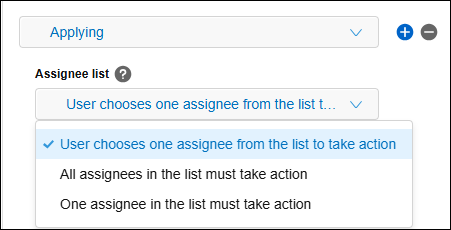
If you want to set multiple users or departments as assignees, select one of the following options from the drop-down list under Assignee list.
- User chooses one assignee from the list to take action
- All assignees in the list must take action
- One assignee in the list must take action
The option you select determines how the assignee is designated and the conditions for the status to change.
User chooses one assignee from the list to take action
Select User chooses one assignee from the list to take action when you want to make it possible to designate one person from multiple candidates as the next assignee.
Condition for status change
When the user designated as the assignee performs the relevant action, the status changes.
Settings to configure on the "Process management" screen
Select User chooses one assignee from the list to take action, then set the assignee candidates.
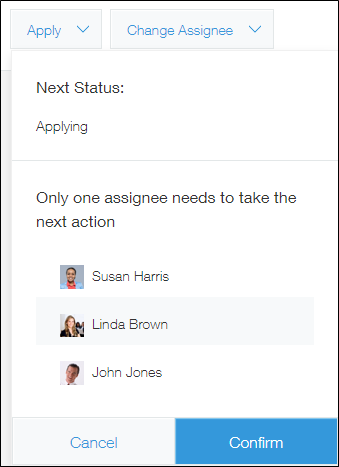
The assignee of the previous status will need to select one user among the candidates to be the assignee for the next status.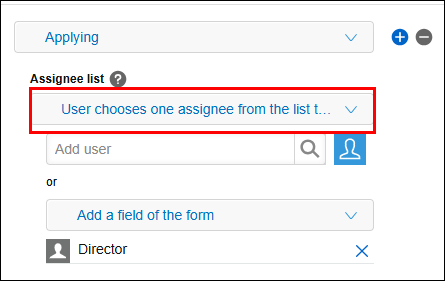
What to do on the "Record details" screen
After the current assignee performs their action, they'll need to specify an assignee for the next status from a list of candidates.

All assignees in the list must take action
Select All assignees in the list must take action when you want to make it necessary for an action to be performed by multiple assignees.
Condition for status change
The status will change when all of the assignees have performed the action.
Settings to configure on the "Process management" screen
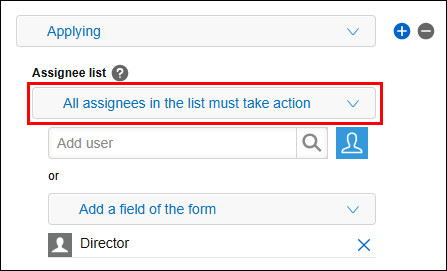
Select All assignees in the list must take action, then set the assignees. All of the users you set will become current assignees when a record is in the relevant status.
What to do on the "Record details" screen
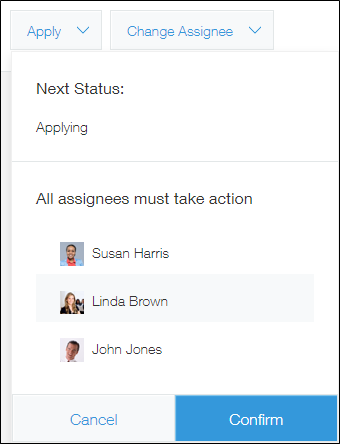
When the current assignee performs their action, they won't need to specify an assignee for the next status. All of the users displayed will automatically be made the next assignees.
Combining multiple actions
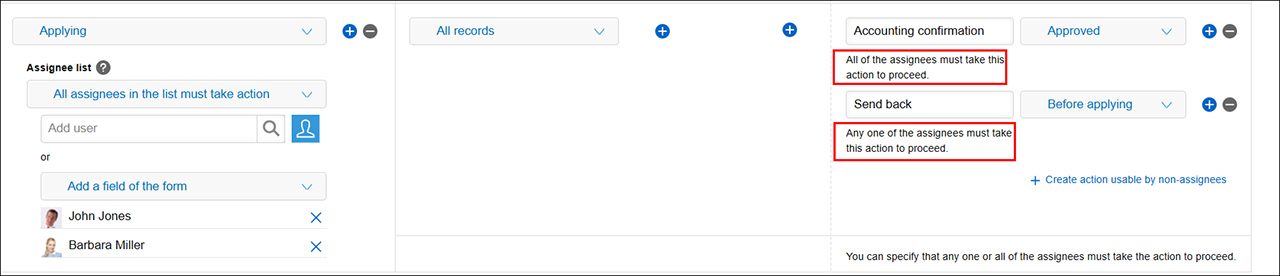
If you select All assignees in the list must take action, you can combine the following two types of actions.
- Actions that must be performed by all assignees (Required)
- Actions that must be performed by one of multiple assignees (Optional)
When you click the Add icon (the plus sign-shaped icon) at the right of the drop-down list for Status after action taken, an input field for an action that must be performed by one of the assignees is added on the screen.
By combining the two different types of actions, you can configure settings like the following.
- If all the assignees perform the action "Accounting confirmation", the status changes to "Approved".
- If any of the assignees perform the action "Send back" (e.g., because there was insufficient information), the status goes back to "Before applying".
Important points to keep in mind when setting multiple actions
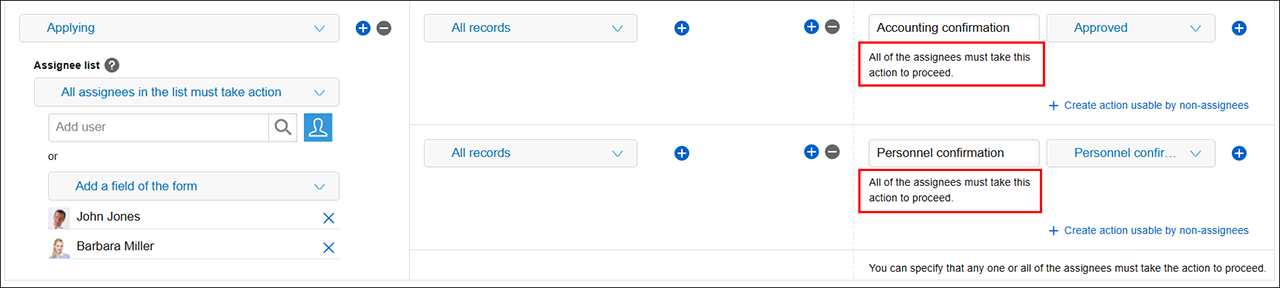
By setting multiple conditions in the Conditions to take this action section, you can set multiple actions that must be performed by all the assignees. When doing so, make sure to keep the following points in mind.
- Even if you set multiple actions that must be performed by all the assignees, each assignee can perform only one action. It is not possible for an assignee to perform all the actions. Also note that, when a user designated as an assignee performs any one of the actions, the user's role as an assignee ends and the user is no longer an assignee.
- Only the action of the assignee who last clicked the button will take effect. For example, if two of the assignees click the "Accounting confirmation" button and then the third and last assignee clicks the "Personnel confirmation" button, only the "Personnel confirmation" action will take effect and the status will change to the one associated with the "Personnel confirmation" action.
One assignee in the list must take action
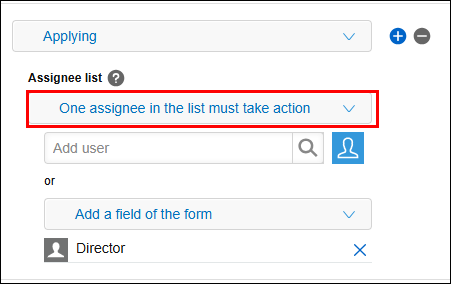
If you don't need to assign an action to a specific person and just want any one of several assignees to complete it, select One assignee in the list must take action.
Condition for status change
When any one of the assignees performs the relevant action, the status changes.
Settings to configure on the "Process management" screen
Select One assignee in the list must take action, then set the assignees. All of the users you set will become current assignees when a record is in the relevant status.
What to do on the "Record details" screen
When the current assignee performs their action, they won't need to specify an assignee for the next status. All of the users displayed will automatically be made the next assignees.