
Enabling two-factor authentication
This page describes the steps to configure settings for logging in to kintone.com using two-factor authentication.
The two-factor authentication is available when Kintone users & system administrators allow users to use it.
Checking availability of two-factor authentication
Configuration steps
Installing an authentication app
You need an authentication app to use the two-factor authentication.
Install one of the apps below to your device.
For iOS and iPadOS
Android
Enabling two-factor authentication
-
Click your user name in the header, or the button to open the menu on the right side of the user name.
-
Click Account settings.
-
Click Login name & password.

-
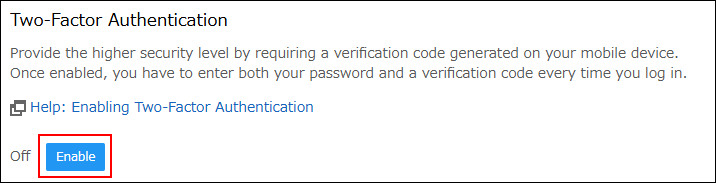
In the Two-factor authentication section, click Enable.
 The registration dialog for the two-factor authentication is displayed.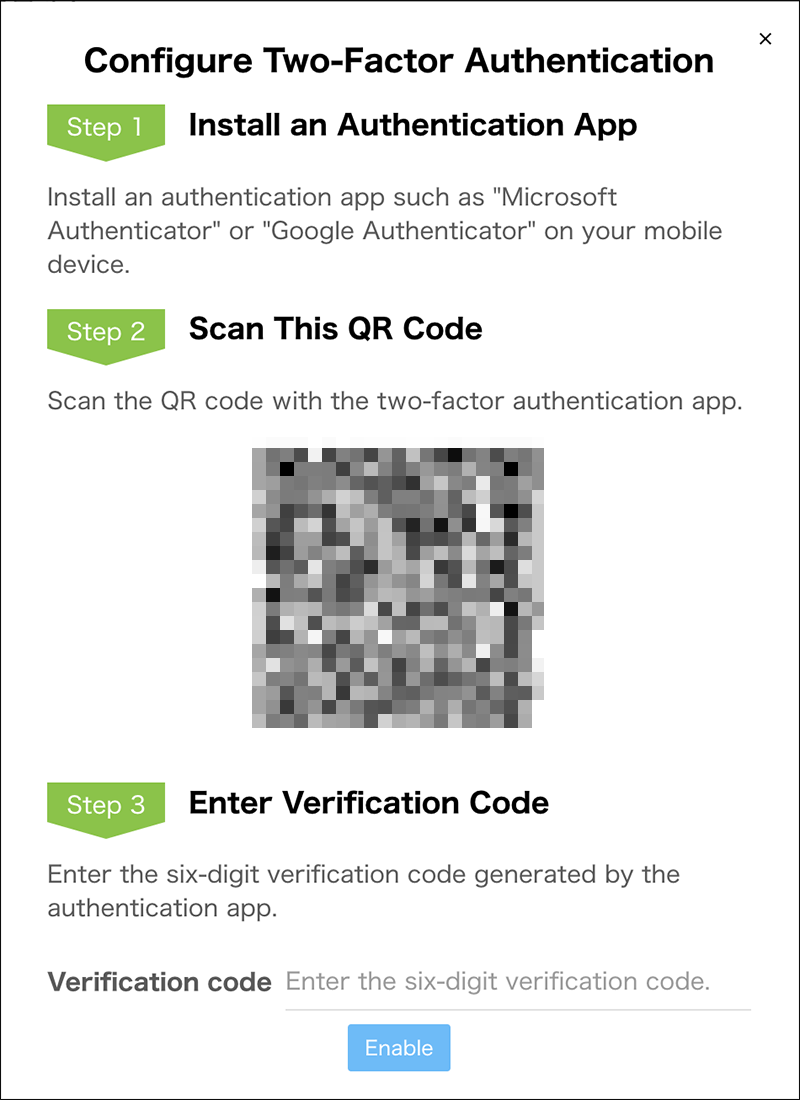
-
Scan the QR code shown on the dialog using the installed authentication app.
-
Enter the six-digit verification code generated by the authentication app into the entry field in the dialog.
Getting a two-factor authentication verification code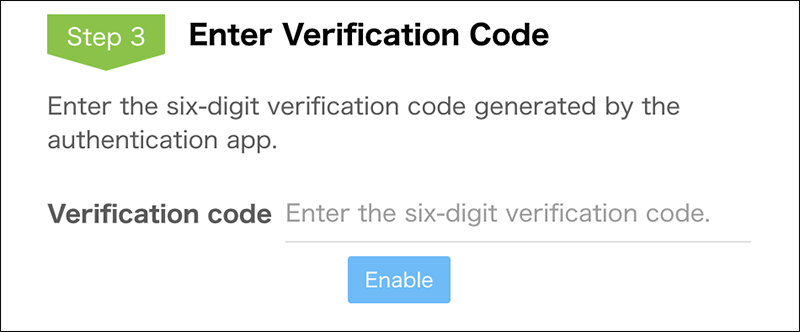
-
Click Enable.
When "The verification code is not valid." is displayed
The verification code may have expired already. Get a new verification code with the authentication app and try Step 6 again.