
Deleting users
This page describes the steps to delete users who no longer use kintone.com from Kintone users & system administration because of their retirement or personnel changes.
Deleting a user individually
-
Access Kintone users & system administration.
Accessing Kintone users & system administration -
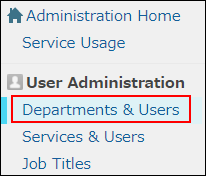
Click Departments & users.
-
In the search box, enter the display name or login name of the user to find the target user.
You can also expand the department tree and select the target user. -
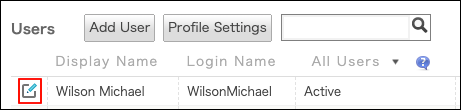
Click the Change icon.
-
Click Delete user account.

-
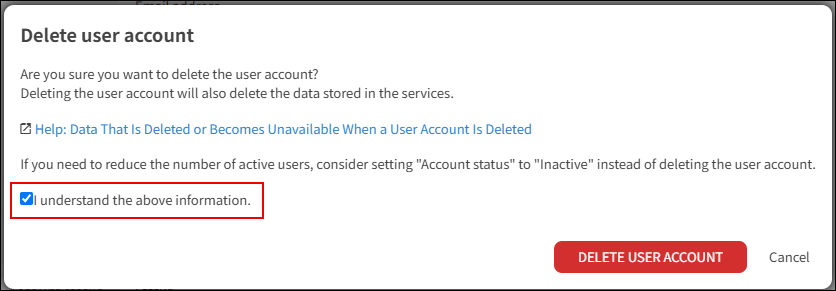
After confirming the information displayed on the Delete user account dialog, select the I understand the above information. checkbox, and click DELETE USER ACCOUNT.
Deleting multiple users in bulk
-
Access Kintone users & system administration.
Accessing Kintone users & system administration -
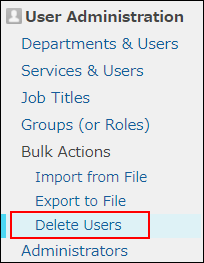
Click Delete users.
-
In the search box, enter the display name or login name of the user to find the target user. You can also expand the department tree and select the target user.
-
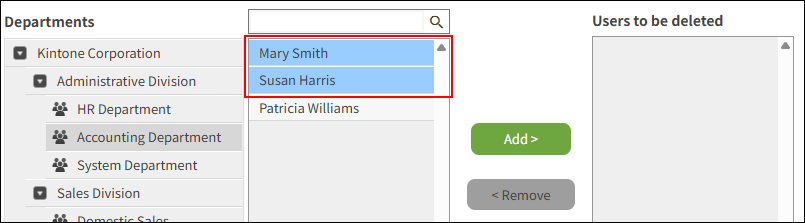
Select users you want to delete.
You can select multiple items.
-
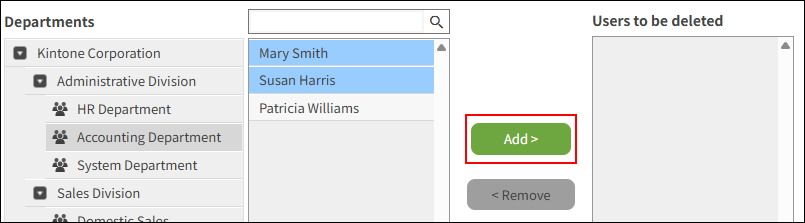
Click Add.
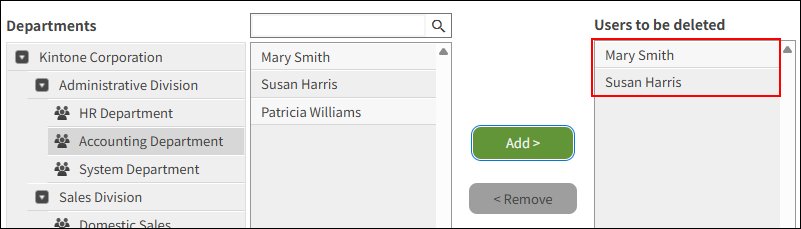
The users selected in Step 4 are displayed in Users to be deleted.
-
Click Delete.
-
Confirm the information displayed on the confirmation dialog, and click PERMANENTLY DELETE USER ACCOUNTS.
Impact on the subscription charge
Deleting user accounts does not reduce the subscription charge.
Billing for kintone.com is based on the number of licensed users.
If you want to revise the subscription charge, change the number of licensed users.