
Changing users' departments and their primary department
Changing departments to which users belong
-
Access Kintone users & system administration.
Accessing Kintone users & system administration -
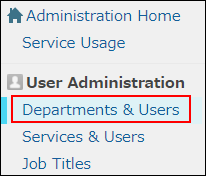
Click Departments & users.
-
In the search box, enter the display name or login name of the user to find the target user.
You can also expand the department tree and select the target user. -
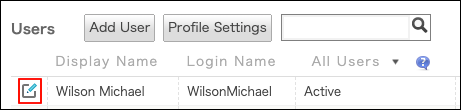
Click the Change icon.
-
To remove a user from a department, click the "x" button on the right side of that department in the "Department(s)" section.
 To add a department to which a user belongs, click the tree icon in the Department(s) section and select the desired department.
-
Click Change user information.
Changing users' primary department
If a user belongs to multiple departments, you can set Primary department for them.
The primary department is displayed in the Profile and other screens.
-
Access Kintone users & system administration.
Accessing Kintone users & system administration -
Click Departments & users.
-
In the search box, enter the display name or login name of the user to find the target user.
You can also expand the department tree and select the target user. -
Click the Change icon.
-
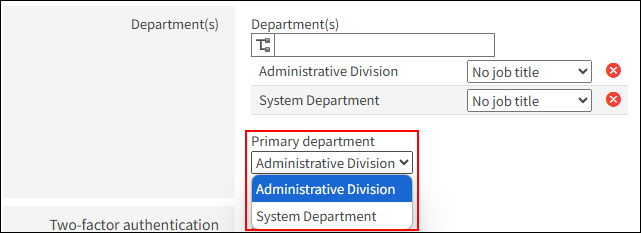
In Primary department, open the dropdown list and select the target department.
-
Click Change user information.