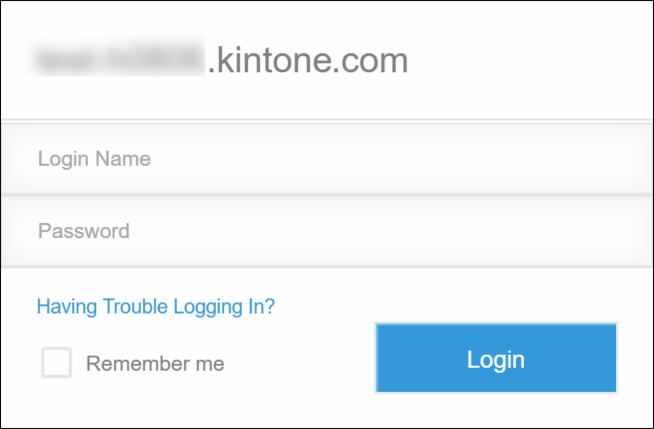
To Receive an E-Mail to Set Initial Password
When you encounter one of the following situations, you need to receive an e-mail from kintone.com to perform a "Set Initial Password" action:
- Inadvertently closed the web browser before the "Set Initial Password" screen is displayed
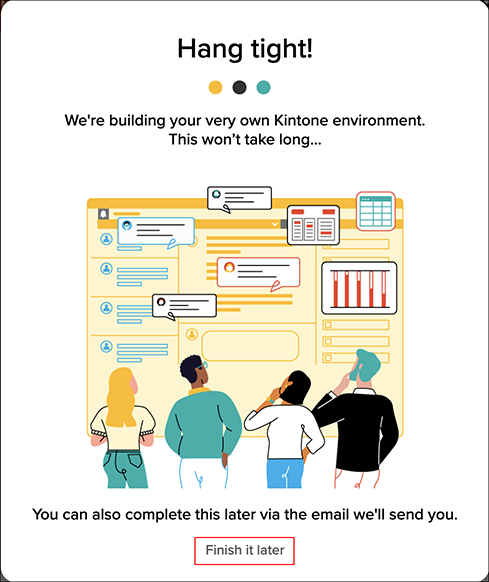
- Clicked Finish it later
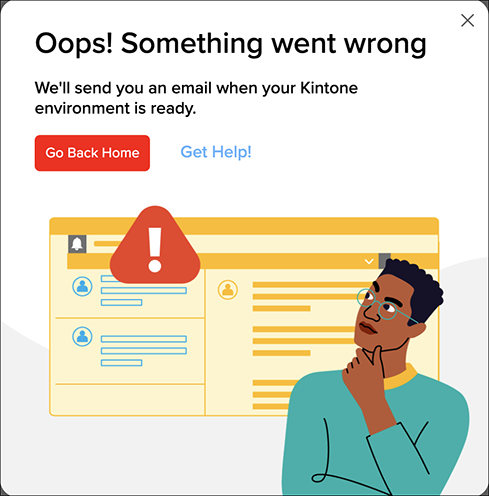
- Encountered an "Oops! Something went wrong" error
How To Receive an E-Mail from kintone.com to Set Your Initial Password
-
An e-mail is sent to the e-mail address specified in the form during signing up for the trial.
Open the e-mail and click "Get Started".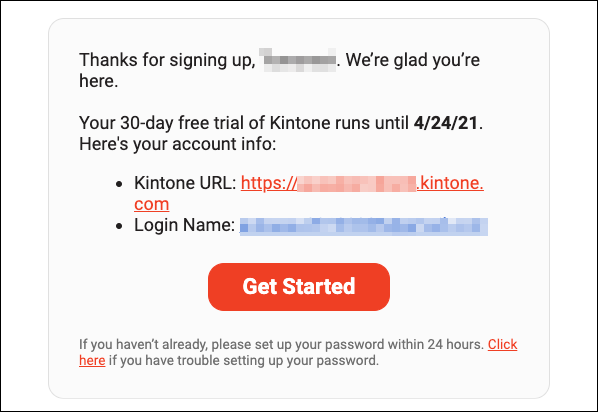 The link expires in 24 hours after receiving the e-mail.
If an error occurs after you clicked the link, refer to "When the Initial Password Cannot Be Set Message Is Displayed".
If you cannot receive the e-mail, Contact Us. -
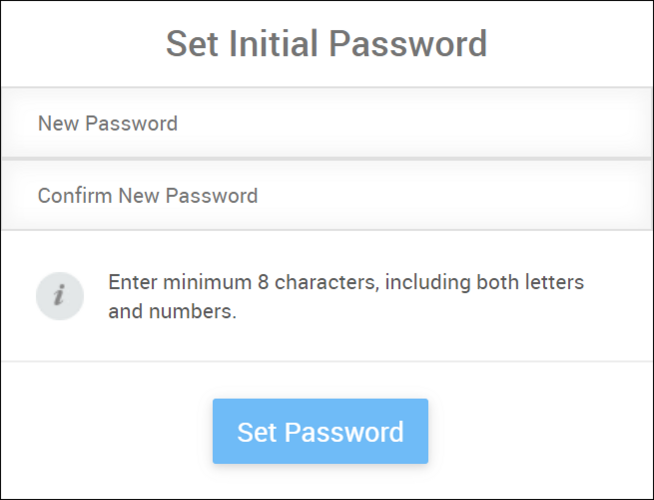
In the "Set Initial Password" screen, set a new password and click Set Password.
-
Enter the email address you specified during sign-up for the trial and the new password you set in Step 2, then click Login.